
Policies
A policy is the full configuration a device runs with. Each device group uses one policy (set under Settings > Enrollment > Device groups), and each device reports which policy version it has applied. The server pushes a new version to devices whenever you save. The device's Effective settings tab shows the result, including global and policy-scoped exclusions, IOCs and branding.
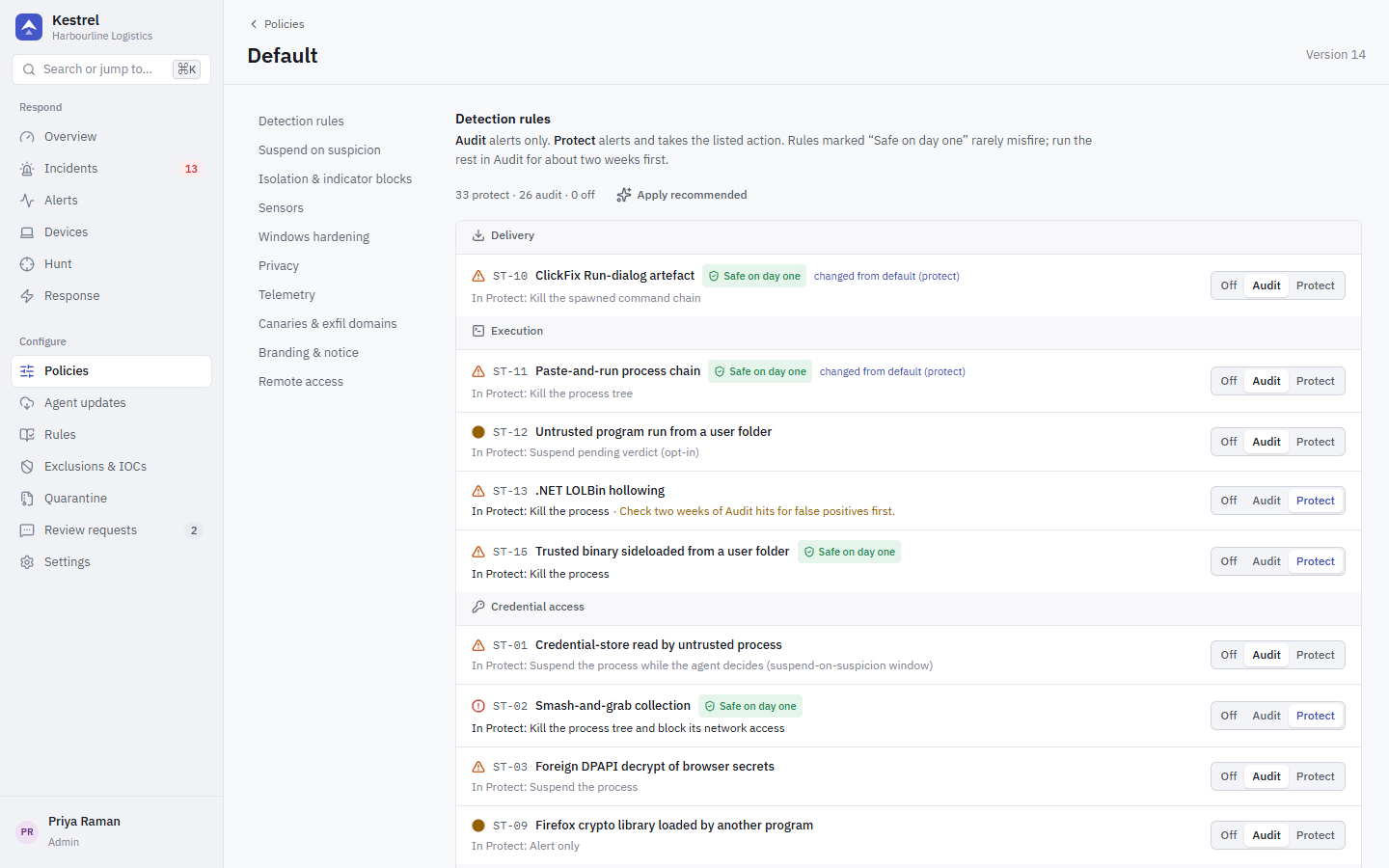
The policy editor has these sections.
Detection rules
One row per rule (built-in and enabled custom Sigma rules) with Off, Audit or Protect. A rule left at its default follows the catalog default. Apply recommended sets the safe on day one rules to Protect and everything else to Audit. See the rule reference for defaults.
Suspend on suspicion
The suspend window in milliseconds (default 3000). When ST-01, ST-03 or ST-12 catch a process in Protect mode, Kestrel freezes it and waits this long for the rest of the evidence. If a strong Protect rule fires in the window, the process is killed; otherwise it resumes. 2 to 5 seconds suits most offices.
Isolation and indicator blocks
| Setting | Default | Meaning |
|---|---|---|
| Release isolation automatically | 72 hours | If an isolated device cannot reach the server this long, the agent lifts isolation itself. 0 keeps isolation until the console or a local administrator with the uninstall token releases it. |
| Indicator block lifetime | 24 hours | How long firewall blocks created by a Block IOC hit last. |
| Block indicator destinations for every program | Off | Off: only the program that contacted the indicator is cut off, so a shared CDN address does not break other apps. On: the destination is blocked for the whole device. |
Sensors
Optional sensor groups. All are on by default. Turn one off only if it costs too much on a particular fleet, because the rules that depend on it go quiet.
- File activity (ransomware)
- Ransomware canary documents
- Persistence (tasks, services, WMI, autorun registry keys)
- LSASS access (credential dumping)
Local turn-off
Whether an employee or on-site technician may turn protection off for a while from the Kestrel tray app, and how. Turning off always needs the device's uninstall token (shown on the device page); turning back on never does.
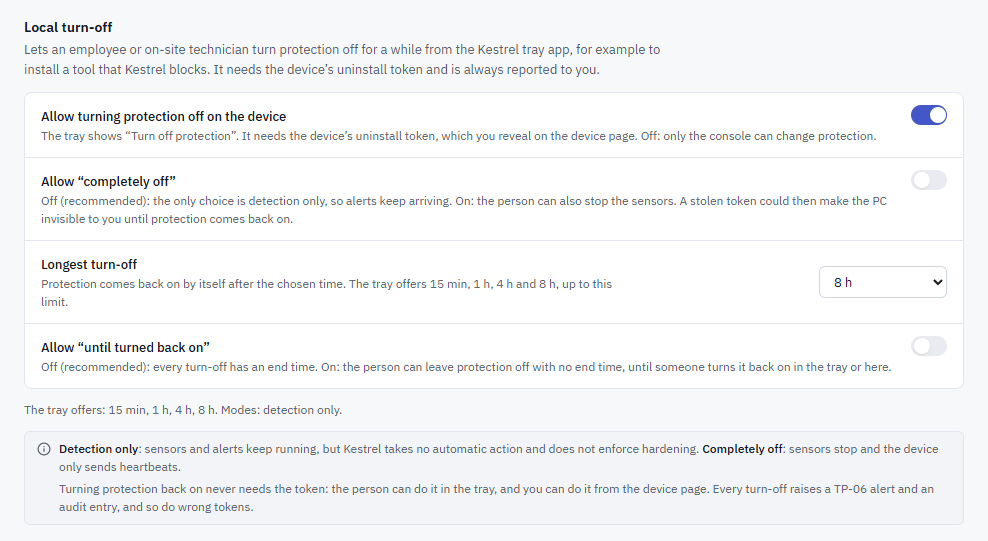
| Setting | Default | Meaning |
|---|---|---|
| Allow turning protection off on the device | On | The tray shows Turn off protection. Off: only the console can change protection, and an active turn-off ends when the device receives the policy. |
| Allow "completely off" | Off | Off: the only mode is detection only, where sensors and alerts keep running but Kestrel takes no automatic action and does not enforce hardening. On: the person can also stop the sensors, so the device only sends heartbeats. |
| Longest turn-off | 8 hours | Protection comes back on by itself after the chosen time. The tray offers 15 min, 1 h, 4 h and 8 h, up to this limit (a limit below 8 hours is offered too, for example 15 and 30 minutes for a 30 minute limit). |
| Allow "until turned back on" | Off | On: the person can leave protection off with no end time, until someone turns it back on in the tray or the console. |
Lowering the limit shortens a turn-off that is already running, and switching a mode off ends it. The device reports both to the audit log.
Every turn-off raises a TP-06 alert and an audit entry, and so does every wrong token (see Protection turned off on the device).
Security advice:
- Keep completely off and until turned back on off unless a technician needs them. With completely off allowed, anyone who learns a device's uninstall token can make that PC invisible to you until protection comes back on.
- Treat the uninstall token as a secret. Reveal it only for the person who needs it and Rotate it afterwards.
- For servers, or for groups where nobody should change protection locally, turn the switch off.
Windows hardening
Built-in Windows controls that Kestrel applies and keeps applied. Windows itself does the blocking, so these work even before a detection rule fires. One hardening mode applies to the policy:
- Off: Kestrel leaves these settings alone.
- Audit: Kestrel checks each enabled control and reports devices where it is missing, without changing anything.
- Enforce: Kestrel applies every enabled control and re-applies it if someone changes it.
| Control | What it does |
|---|---|
| Block mshta.exe | AppLocker rule: stops HTML Application lures for standard users. |
| Block programs in Temp and Downloads | AppLocker rule: standard users cannot run .exe files straight from %TEMP% or Downloads. Installers must be run by IT. |
| Remove the Win+R Run dialog | The strongest control against "press Win+R and paste" ClickFix lures. |
| Warn on multi-line paste in Terminal | Windows Terminal asks before pasting multi-line commands. |
| PowerShell script-block logging | Records de-obfuscated PowerShell (event 4104) for the detection rules. |
| DPAPI audit channel | Turns on the log that shows which program decrypted browser secrets. Rule ST-03 needs it. |
| Defender attack-surface rules | Blocks rare or unknown executables, obfuscated scripts and impersonated system tools. Only where Defender is the active antivirus. |
| Disable browser remote debugging | Sets Chrome and Edge RemoteDebuggingAllowed = false. |
| Keep WDigest cleartext passwords off | Pins WDigest UseLogonCredential to 0. |
| Defender: block credential stealing from LSASS | Adds the one Defender ASR rule for LSASS; your other ASR rules are left alone. |
| LSA protection (RunAsPPL) | Runs LSASS as a protected process. Takes effect after the next reboot, which Kestrel never forces (devices show Pending reboot). Can stop unsigned LSA plug-ins; test first. |
| Report the vulnerable-driver blocklist | Report only: shows whether the Microsoft vulnerable-driver blocklist is on. Kestrel never changes it. |
| Task Scheduler operational log | Turns on the log of scheduled task changes, a fallback for rule PS-05. |
Notes:
- AppLocker controls read the effective policy and never touch AppLocker policies managed by GPO or MDM (the device shows skipped: domain policy present). On a machine with no AppLocker policy they add the standard default rules (Program Files, Windows, Administrators), never an allow-all rule. This also blocks per-user installs in AppData for standard users. Windows Home has no AppLocker.
- The device page's Hardening tab shows wanted state, actual state and source per control; Re-apply hardening fixes drift on demand.
Privacy
What leaves the device. Detection always runs locally on full-fidelity events; these filters apply only to uploads.
| Setting | Effect when off / set |
|---|---|
| Upload full command lines | Off: only the program and its flags are uploaded. |
| Replace user names with a hash | On: analysts see a stable pseudonym instead of the account name. |
| Upload DNS queries | Off: no DNS telemetry (DNS evidence is still attached to alerts). |
| Upload script content | Off: PowerShell and AMSI content is replaced by [redacted]. |
| Never upload paths under | Path prefixes (for personal folders); events keep their type and process but lose the path. * matches one folder, for example C:\Users\*\Documents\Personal. |
See Privacy.
Evidence capture
Evidence capture after data theft (ST-02 / ST-04) decides what the PC keeps, encrypted, after one of these alerts. All parts are on by default, also for policies saved before the setting existed.
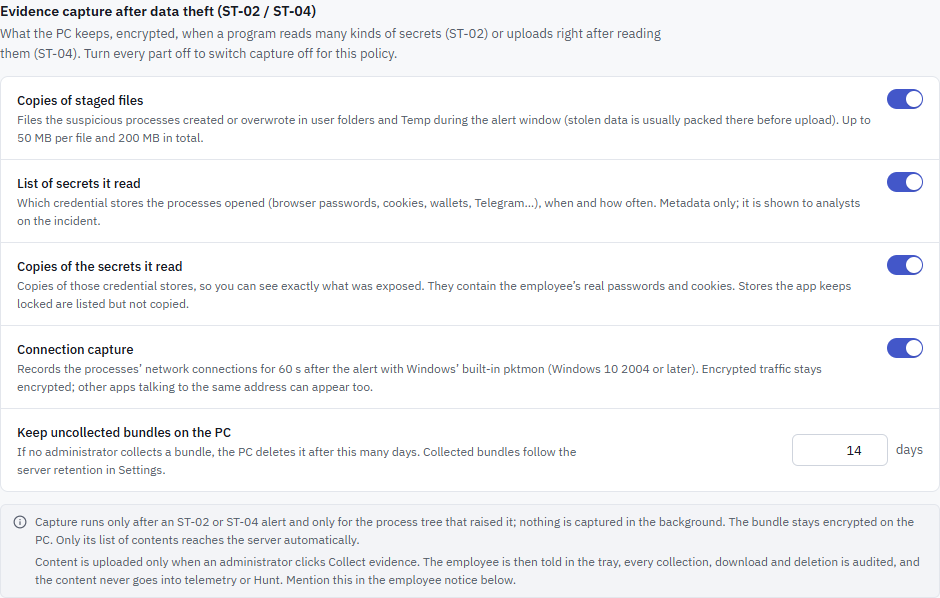
| Setting | What it keeps |
|---|---|
| Copies of staged files | Files the suspicious processes created or overwrote in user folders and Temp during the alert window. Up to 50 MB per file and 200 MB in total. |
| List of secrets it read | Which credential stores the processes opened, when and how often. Metadata only; analysts see it on the incident. |
| Copies of the secrets it read | Copies of those stores, with the employee's real passwords and cookies. Needs the list; turning the list off turns copies off too. Stores the app keeps locked are listed but not copied. |
| Connection capture | 60 s of the processes' network traffic with pktmon (Windows 10 version 2004 or later). Encrypted traffic stays encrypted; other apps talking to the same address can appear. |
| Keep uncollected bundles on the PC | Days (1 to 365, default 14) before the PC deletes a bundle nobody collected. Collected bundles follow the server retention in Settings. |
To turn evidence capture off for a policy, turn off staged files, the list of secrets and connection capture. The ST-02 and ST-04 alerts still arrive; nothing is kept for an investigation. To keep the metadata but never hold copies of real passwords, turn off only Copies of the secrets it read.
Capture runs only after one of these alerts and only for the process tree that raised it. Content reaches the server only when an administrator collects it, and the employee is told in the tray. Mention evidence capture in the employee notice. See Evidence capture.
Telemetry
- Upload raw events for hunting. Off: only alerts and their evidence leave the device.
- Local outbox limit (64 to 8192 MB). While offline, the agent queues events up to this size, then drops the oldest low-priority events. Alerts and action results are never dropped.
Canaries and exfiltration domains
- Plant canary credential stores. Decoy browser profiles of defunct Chromium forks that stealers enumerate (Kometa, 7Star), a fake MetaMask vault and a decoy
.aws\credentials(only if the real file does not exist). Nothing legitimate opens them, so rule ST-16 fires with near-zero false positives. Existing files are never overwritten, and Kestrel never plants under a mainstream browser. - Exfiltration and dead-drop domains. Rule ST-14 alerts when a program that is not a browser resolves or connects to these.
Branding and employee notice
Organisation name, IT contact name, email, phone and help page URL, plus a Markdown employee notice (write and preview). The tray app shows these on every device that uses the policy. Use the notice to tell employees what is collected, why, how long it is kept and whom to contact.
Remote access
What remote access this policy allows: remote desktop (Off, View only, Control), file manager (Off, Read only, Full) and the guardrails. The effective result on each device is the stricter of this policy and the device's install profile: the policy can narrow what a device allows but never widen it. Existing policies default to no remote access. See Remote access.