
Employee tray app
The tray app (kestrel-tray.exe) runs in each signed-in user's session. The MSI starts it at every sign-in through HKLM\SOFTWARE\Microsoft\Windows\CurrentVersion\Run. It runs without administrator rights and talks only to the local agent, over the named pipe \\.\pipe\kestrel-tray.
It is there so that employees understand what Kestrel did and can reach IT. It cannot allow or restore anything. The only thing it can change is turning protection off for a while, and only with the device's uninstall token (see Turning protection off).
Status
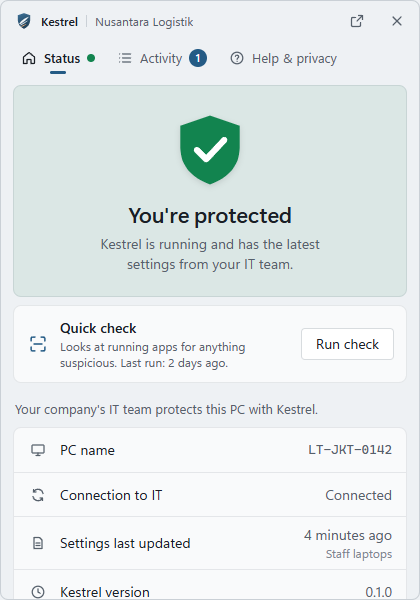
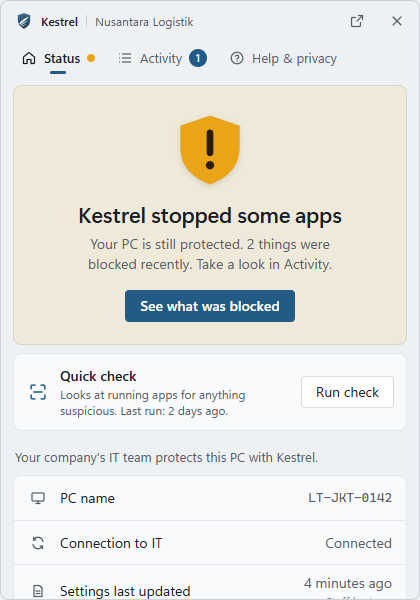
The Status tab shows one of these states in plain words:
| State | What the employee sees |
|---|---|
| Protected | "You're protected": Kestrel is running and has the latest settings. |
| Attention | "Kestrel stopped some apps": still protected, something was blocked recently; links to Activity. |
| Network limited | "Your network access is limited": the PC is isolated; only Kestrel can reach IT. |
| Partly working | Some checks are not running; restarting usually fixes it, otherwise contact IT. |
| Not connected | Still protecting the PC, but cannot reach the company's server; it catches up later. |
| Not running | The Kestrel service is not running; contact IT. |
It also shows the PC name, the connection to IT, when settings were last updated, and a Quick check button that looks at running apps for anything suspicious (at most once every 5 minutes).
Activity and review requests
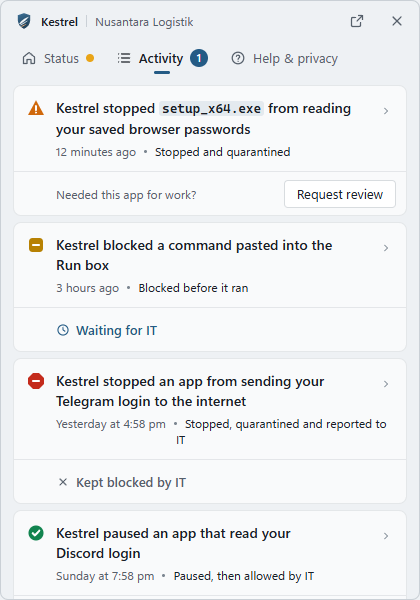
Activity lists recent blocks in plain language: what happened, when, which file. Each user sees only their own items plus machine-wide ones, so users on a shared or Remote Desktop host never see each other's alerts.
For a block the employee needs for work, Ask IT to review this block sends a request with their reason ("Why do you need it?"). The request appears in the console under Review requests, and the decision comes back to the tray: Waiting for IT, Allowed by IT or Kept blocked by IT. Limits: one request per alert until IT decides, at most 5 per user per hour.
Help and privacy
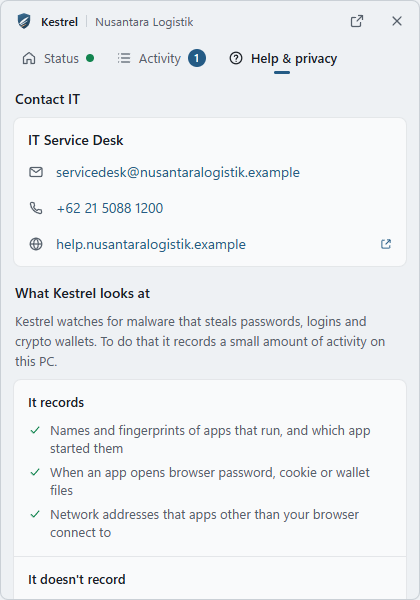
Help & privacy shows the IT contact (name, email, phone, help page) and the organisation's monitoring notice, both set per policy under Branding & notice. It also lists, in plain words, what Kestrel records (names and fingerprints of apps that run, when an app opens browser password, cookie or wallet files, network addresses that non-browser apps connect to) and what it does not (document, email or chat contents, keystrokes or screenshots, the websites you visit, passwords).
Remote sessions
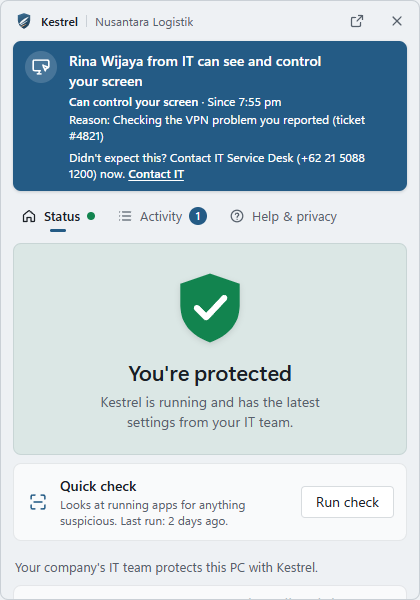
When IT connects with remote desktop or the file manager, the tray shows who is connected, whether they are viewing, controlling or accessing files, since when, and the reason, with a "Didn't expect this? Contact IT" link. If the profile requires consent, the tray shows an Allow / Deny prompt first; Allow becomes clickable only after a second, and Escape means Deny. When the session ends, the tray says so. See Remote access.
Turning protection off
Sometimes a technician at the PC needs Kestrel out of the way for a short time, for example to install a driver package that Kestrel keeps stopping, while the PC cannot reach the console or nobody with console access is around. The Status tab then has a Turn off protection row with a Turn off... button.
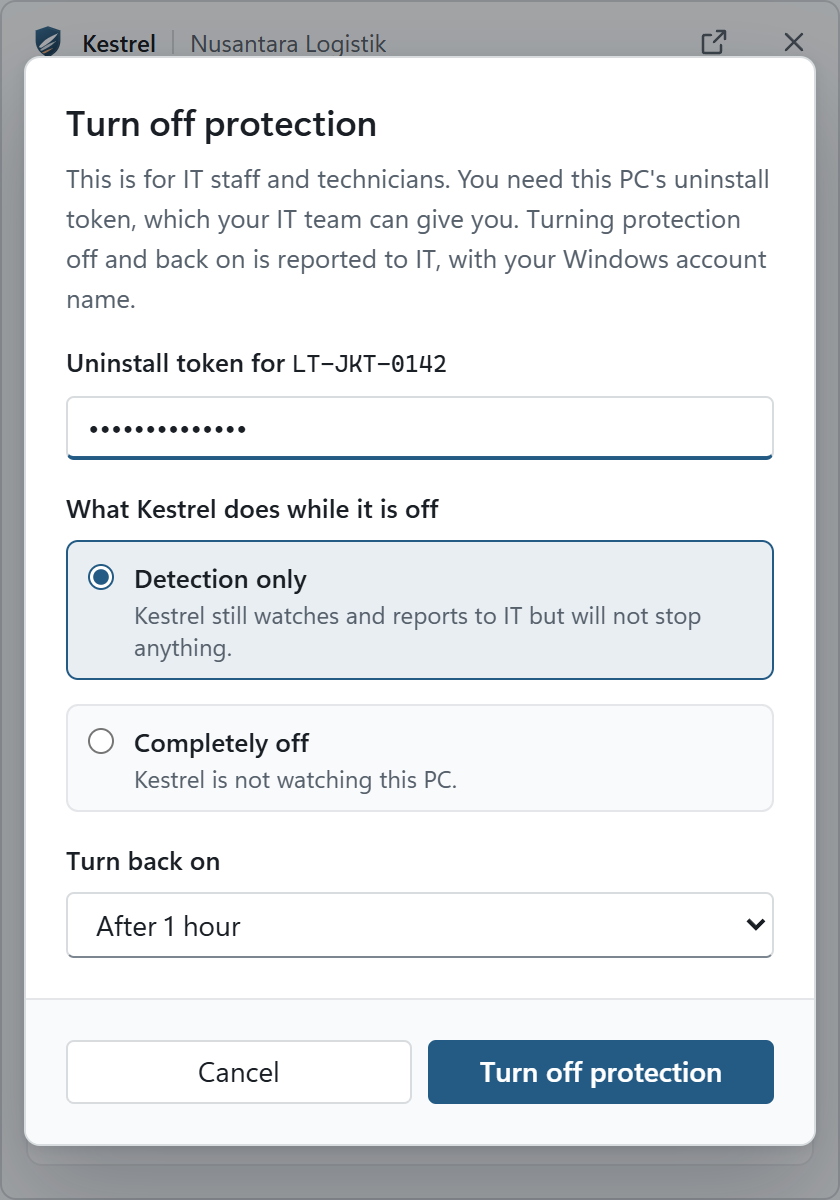
Who it is for and what it needs:
- It is meant for IT staff and on-site technicians, not for everyday use. The dialog says so.
- It needs the uninstall token of that device, the one needed to uninstall Kestrel. IT gets it in the console with Uninstall token > Reveal on the device page (recorded in the audit log). Without the token nothing changes.
- The button only appears when the policy allows the switch (Local turn-off, see Policies). With the switch disabled, or with an older agent that does not have it, the tray hides the button.
What the person chooses:
| Choice | What happens |
|---|---|
| Detection only (default) | Kestrel still watches and reports to IT but will not stop anything: no automatic response, every alert is recorded as Audit, hardening is left as it is. |
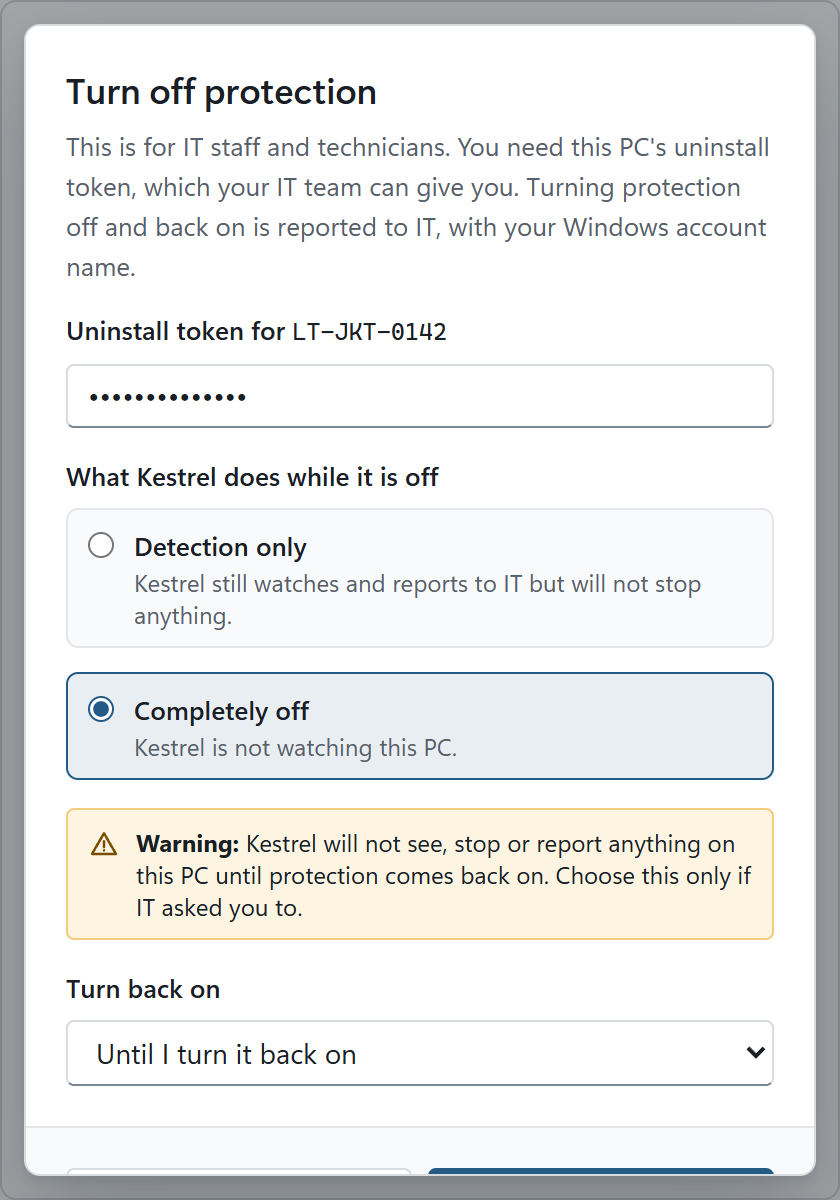
| Completely off | Kestrel is not watching this PC: sensors stop, only the heartbeat to IT keeps running. Offered only when the policy allows it, with a warning. |
| Turn back on | After 15 minutes, 1 hour, 4 hours or 8 hours (capped by the policy's longest time), or Until I turn it back on when the policy allows it. |
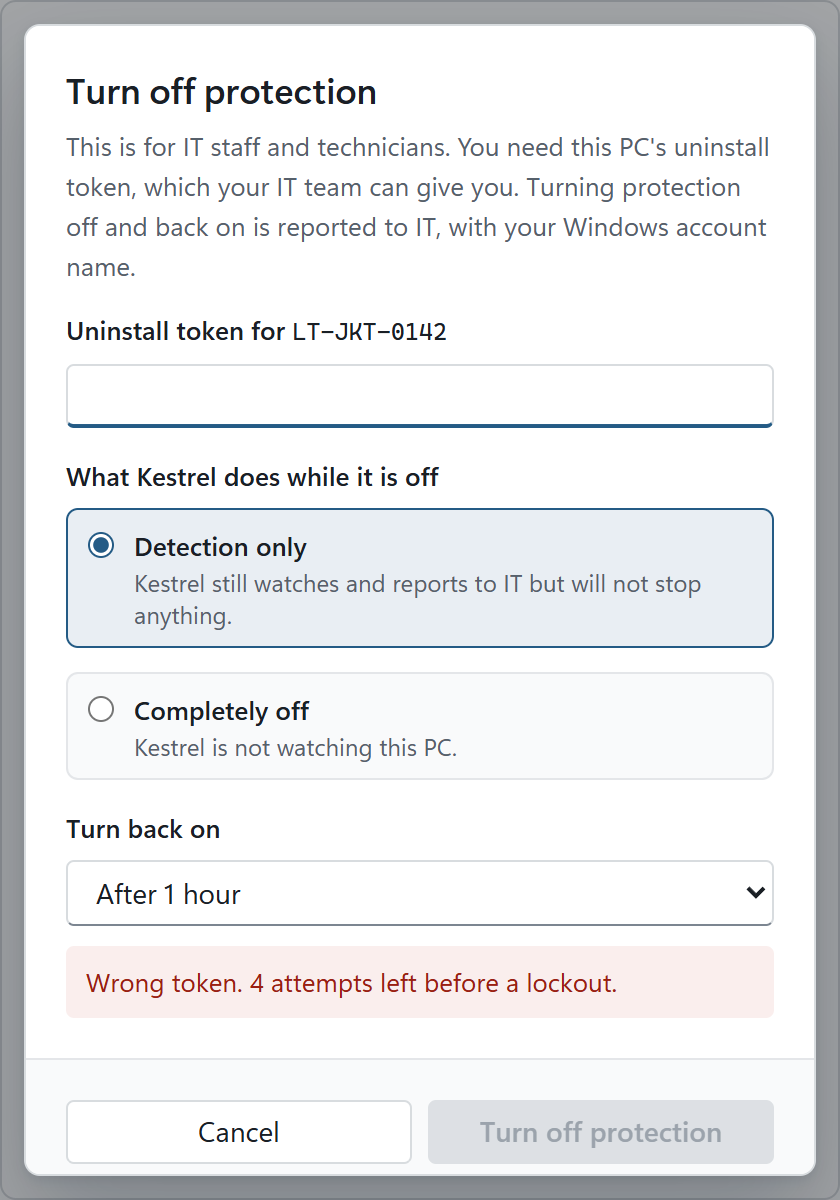
Wrong tokens are limited. The dialog says how many attempts are left ("Wrong token. 3 attempts left before a lockout."). After 5 wrong tokens the switch is locked for 1 minute, then 2, 4 and so on up to 1 hour, counted per device. While it is locked the dialog shows a countdown and cannot be submitted. The token field is cleared after every attempt, and the tray never logs or stores the token.
While protection is off, the tray icon changes to a hollow shield with pause bars and the Status tab says Protection is off, with the mode in plain words, when it turns back on ("Turns back on automatically at 14:30 (in 1 h 20 min)" or "Until turned back on"), and who turned it off.
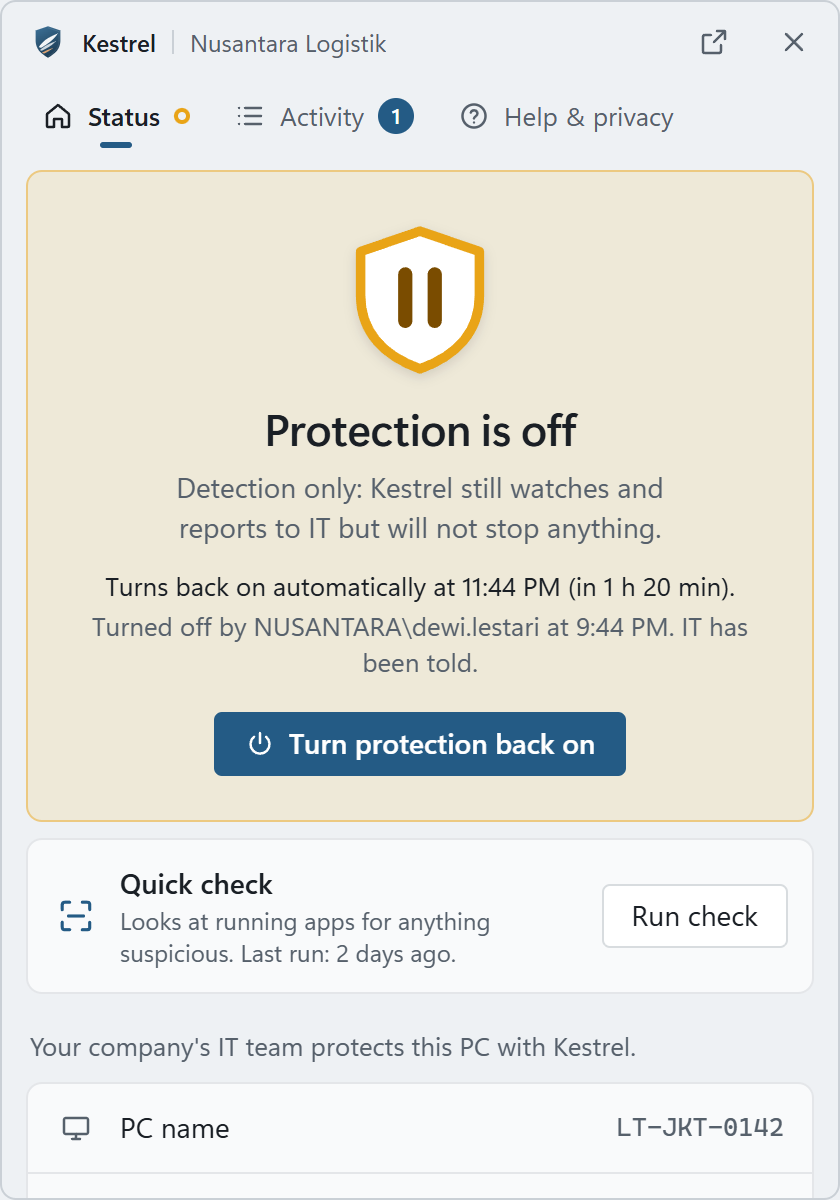
Turning it back on never needs a token: anyone at the PC can press Turn protection back on. IT can also turn it back on from the console, and a timed choice turns back on by itself, also across restarts.
What IT sees: every turn-off raises a TP-06 alert with the user, mode and end time; every turn-on and every wrong token is recorded too; the device page shows that protection is off and offers Turn protection back on. The employee also gets a notification in the tray each time.
Keep in mind that user-mode software cannot guarantee it stays in control: someone who already has the token, or administrator rights, can do more than this switch allows. The switch is for convenience under IT's view, not a security boundary.
Security
- The pipe allows SYSTEM full access and authenticated users read and write; remote clients are rejected.
- The tray trusts the pipe only if its server runs in session 0, where services run, so a program started by a user cannot pretend to be the agent and feed it fake status.
- Every request is attributed to the caller's Windows account.