
Enroll devices
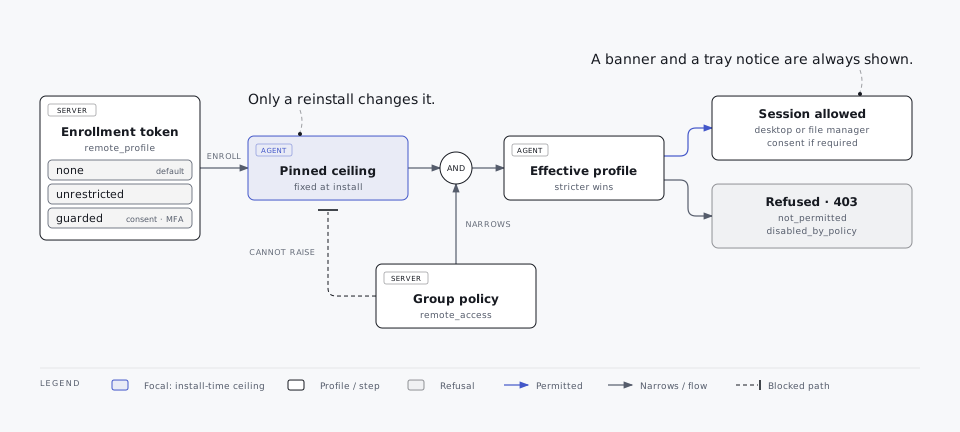
A device joins Kestrel when the MSI runs with an enrollment token. The token decides the device group (and so its policy) and the device's remote-access profile, which is fixed at install time.
Before you start:
- Put
KestrelAgent.msiindeploy/installers/on the server (see Publish the agent MSI). - Make sure the first name in
KESTREL_PUBLIC_HOSTNAMEresolves and is reachable from the endpoints on port 8443. - Supported endpoints: 64-bit Windows 10, Windows 11, Windows Server 2019 or later.
Create a token with the install wizard
Open Devices > Install agent (or Settings > Enrollment > Install agent). The wizard has three steps.
Step 1: remote access. Choose one of three profiles:
| Profile | What admins can do on these devices |
|---|---|
| No remote access (default) | Detection and response only. Nobody can view the screen or open files. Can only be raised by reinstalling. |
| Remote control + file manager (no guardrails) | Take control and manage files at any time without asking the employee. The banner and tray notification are still always shown. Upload, rename and delete allowed. |
| Remote control + file manager with guardrails (recommended if you need remote access) | The employee allows each session; the admin gives a reason and confirms MFA. Uploads yes, delete no. 60-minute sessions, 15-minute idle limit. |
You can also customise a profile. Creating a token that grants any remote access requires the remote-access privileges (administrators), an interactive console session, and a fresh MFA check if your account has MFA.
Step 2: guardrails (guarded or customised profiles only). Set:
- Remote desktop: Off, View only or Control.
- File manager: Off, Read only or Full.
- Employee must allow each session (and how long to wait for an answer).
- Admin must give a reason.
- Fresh MFA check before access (one check lasts 10 minutes).
- Allow uploads and new folders; allow delete and rename.
- Longest session and idle timeout, allowed hours and blocked folders.
Step 3: enrollment token. Pick the device group, how long the token is valid (1 to 90 days, default 7) and the maximum number of devices (1 to 10,000, default 50). Create one token per rollout wave.
The result is shown once:
- Download
Install-Kestrel-<profile>.cmd(none,unrestricted,guardedorcustom). - PowerShell one-liner with the
msiexeccommand. - Token only, for Intune or GPO MSI properties.
Treat all three like a password: anyone holding them can enroll a device into the group until the token expires or is used up. Revoke tokens under Settings > Enrollment > Enrollment tokens.
See Remote access for what each profile allows and why the installed profile is a ceiling the server can never raise.
Install with the generated script
Install-Kestrel-<profile>.cmd is a small batch file with no external dependencies. When run, it:
- Asks Windows for administrator rights if it does not have them.
- Downloads the MSI from your server into a new folder under
%ProgramData%that only SYSTEM and Administrators can access. - Checks the MSI's SHA-256 against the value pinned in the script and stops if it differs. If the console uses a self-signed certificate, the download falls back to no certificate validation and relies on the hash.
- Runs
msiexec /i ... /qn SERVER=... TOKEN=... CA_B64=...with a verbose log in the same folder.
Double-click it on a single PC. For silent deployment (GPO startup script, Intune, RMM, running as SYSTEM or an administrator) pass /quiet so it never waits for a key press:
Install-Kestrel-guarded.cmd /quietExit codes: 0 installed, 3010 or 1641 installed but Windows needs a restart, 3 SHA-256 mismatch (nothing installed), other values are msiexec errors (see the log path it prints).
Install with msiexec
Download the MSI from https://<server>/downloads/KestrelAgent.msi, then in an administrator shell run the command the console shows:
msiexec.exe /i KestrelAgent.msi /qn SERVER=edr.example.internal:8443 TOKEN=kte_... CA_B64=<base64 agent CA>| Property | Meaning |
|---|---|
SERVER | host:port of the agent gRPC endpoint. The host must be one of the names in KESTREL_PUBLIC_HOSTNAME; the agent verifies it. |
TOKEN | Enrollment token (kte_...). |
CA_B64 | Base64 of the agent CA PEM (ca_pem from GET /api/agent/installer). The agent pins it. |
All three are required for a fresh install. TOKEN, CA_B64 and UNINSTALL_TOKEN are hidden MSI properties: they do not appear in a verbose MSI log, and the custom action passes the token to the agent on stdin, not on a command line. The msiexec command line you type is still visible to local process monitors, so prefer the generated script or your deployment tool's secret handling.
What the MSI does:
- Installs
kestrel-agent.exe,kestrel-scan.exeandkestrel-tray.exeintoC:\Program Files\Kestrel. - Creates
C:\ProgramData\Kestrel, accessible to SYSTEM and Administrators only. A folder that already exists and that other users could write to is moved aside and re-created. - Enrolls the device and registers and starts the
KestrelAgentservice (LocalSystem, automatic start, restart on failure, locked-down service DACL). - Starts the tray app at every user sign-in through
HKLM\SOFTWARE\Microsoft\Windows\CurrentVersion\Run.
The device appears under Devices within seconds.
GPO, Intune and RMM
- Intune (Win32 app) or RMM: deploy
Install-Kestrel-<profile>.cmd /quiet, or deploy the MSI with the propertiesSERVER,TOKENandCA_B64(use Token only from the wizard). Run as SYSTEM. - Group Policy: use a computer startup script that runs
Install-Kestrel-<profile>.cmd /quietfrom a share that only administrators can write to. GPO software installation cannot pass the token as a property without a transform. - Create one token per wave with a short expiry and a device limit close to the wave size.
Defender exclusion until the binaries are signed
The binaries are not code-signed yet, and Microsoft Defender flags the unsigned agent. Until you sign them (see Code signing), deploy a Defender exclusion for C:\Program Files\Kestrel through GPO or Intune before installing. For a single test VM:
Add-MpPreference -ExclusionPath 'C:\Program Files\Kestrel'Uninstall
Every device gets its own uninstall token, issued by the server at enrollment. The agent stores only an Argon2id hash of it. Find it on the device page under Uninstall token > Reveal (each reveal is written to the audit log). Rotate sends a new token to the agent; the old token keeps working until the agent confirms.
There are three ways to uninstall, in order of preference:
- Remove device in the console (remote, nobody has to handle the token).
- The Uninstall Kestrel EDR tool on the PC (needs the token).
- The command line with
msiexec(needs the token; for scripts and deployment tools).
1. Remove device from the console
On the device page, click Remove device in the danger zone, type the hostname to confirm and choose whether to also delete quarantined files and logs. The server sends the uninstall token to the agent with the command, so nobody has to copy it. An offline PC uninstalls the next time it connects; the request stays queued for 90 days and can be cancelled until the agent receives it. Afterwards the device leaves the device list and its certificates are revoked. Admins only, with an MFA re-check when the admin has two-factor authentication. Needs a recent agent; for older agents the button is disabled. See Remove device.
2. The uninstall tool on the PC
- Open the Start menu and choose Kestrel EDR > Uninstall Kestrel EDR. Accept the Windows administrator prompt. IT staff can also open it from the tray app: Help & privacy > Uninstall Kestrel....
- Paste the token and click Uninstall.
- In the console, use Decommission device on the device page to remove it from the device list.
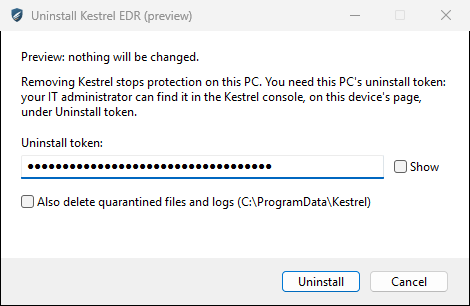
Also delete quarantined files and logs removes C:\ProgramData\Kestrel after a successful uninstall (off by default, so quarantine and logs are kept). The folder is only deleted if it is a real folder owned by SYSTEM or Administrators, and links inside it are removed without touching their targets. A wrong token is reported in the window and you can paste it again. The tool writes a verbose installer log to %TEMP%\kestrel-uninstall-<date>-<time>\kestrel-uninstall-<date>-<time>.log (a folder only administrators can open) and shows it in the window (Show log) when the removal fails. Its exit code is 0 when Kestrel was removed, 1 for a wrong token and 2 otherwise.
Removing Kestrel from Settings > Apps (or Programs and Features) stops with a message that points to the Start menu tool, because Windows has no way to ask for the token there.
3. Command line
For scripts and deployment tools, use msiexec with the MSI file or the product code:
msiexec /x KestrelAgent.msi /qn UNINSTALL_TOKEN=<token>
msiexec /x <product code> /qn UNINSTALL_TOKEN=<token>
The product code is the key name of the Kestrel EDR Agent entry under HKLM\SOFTWARE\Microsoft\Windows\CurrentVersion\Uninstall:
Get-ChildItem HKLM:\SOFTWARE\Microsoft\Windows\CurrentVersion\Uninstall |
  Where-Object { $_.GetValue('DisplayName') -eq 'Kestrel EDR Agent' } |
  Select-Object -ExpandProperty PSChildName
After an uninstall with the tool or the command line, use Decommission device on the device page to take the device off the device list.
A wrong or missing token aborts the uninstall. Removing only part of the product is refused. A successful uninstall removes the service, the ETW sessions, Kestrel's WFP filters (so an isolated host does not stay isolated) and the files, and retires the device identity.
Upgrade
Install a newer MSI over the old one. An upgrade keeps the enrolled identity and needs no token:
msiexec /i KestrelAgent.msi /qnThe MSI stops the agent service, replaces the files and starts the new agent. Downgrades are refused. For fleet upgrades, use signed agent updates with rings instead: see Agent updates.
Re-enroll or change the remote-access profile
The remote-access profile is pinned on the device at enrollment. To change it, or to move a device to a fresh identity:
- Uninstall with the device's uninstall token.
- Create a new token with the profile you want.
- Install again with the new token.
Every enrollment creates a new device in the console, even on the same hardware. If the hardware UUID matches an existing device, both are flagged as possible duplicates (and TP-SRV-DUP-ENROLL is raised if the old one was active in the last 24 hours). Merge or dismiss them on the device page.
Troubleshooting enrollment
| Symptom | Check |
|---|---|
| MSI error "SERVER, TOKEN and CA_B64 are required" | All three properties must be set on a fresh install. Copy the command again from the console. |
| Device never appears | From the endpoint: Test-NetConnection <server> -Port 8443. The host in SERVER must be in KESTREL_PUBLIC_HOSTNAME. No TLS-terminating proxy on 8443. |
| Token rejected | Token expired, revoked or used up. Create a new one. |
| No installer script offered | KestrelAgent.msi is missing from deploy/installers/; the server cannot pin a hash without it. |
| Script stops with a SHA-256 mismatch (exit code 3) | The MSI on the server changed after the script was generated. Create a new token and script. |
| Install succeeds, then the agent disappears | Defender quarantined the unsigned agent. Add the exclusion above or sign the binaries. |
| Agent installed but not running | Get-Service KestrelAgent; agent logs in C:\ProgramData\Kestrel\logs; MSI log from /l*v. |
| Agent CA changed (server rebuilt without the master key) | Every agent must re-enroll. Keep KESTREL_MASTER_KEY backed up. |
More in Troubleshooting.