
Console tour
One section per console page: what it is for and what you do there. Screenshots follow the site theme (switch with the toggle in the top bar). Click an image to open it full size.
Overview
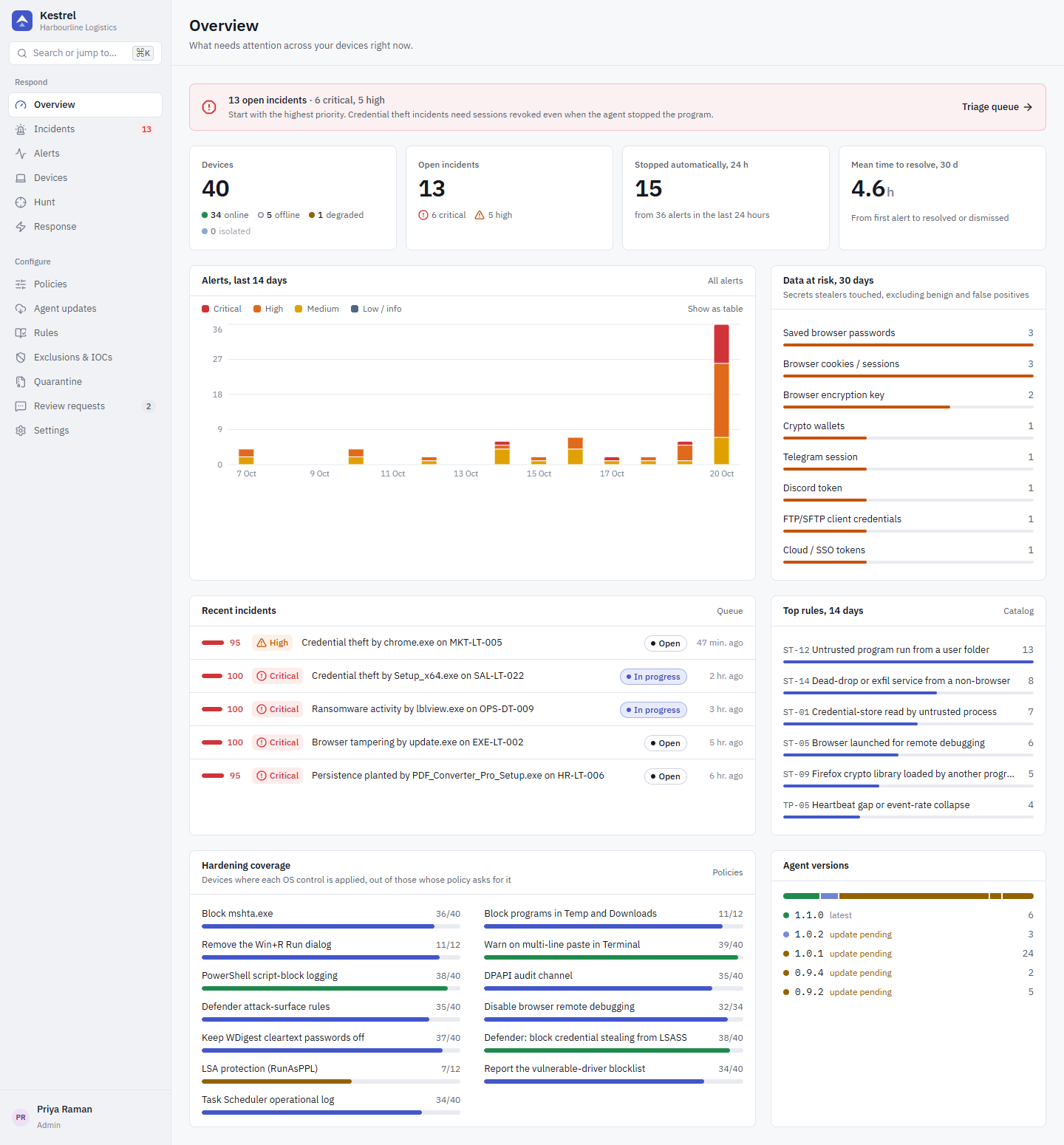
The landing page answers "what needs attention right now". It shows open incidents, alerts over the last 14 days, the data categories stealers touched in the last 30 days, recent incidents, the top rules, hardening coverage per control and the agent versions in the fleet. Each card links to the page with the details.
Incidents
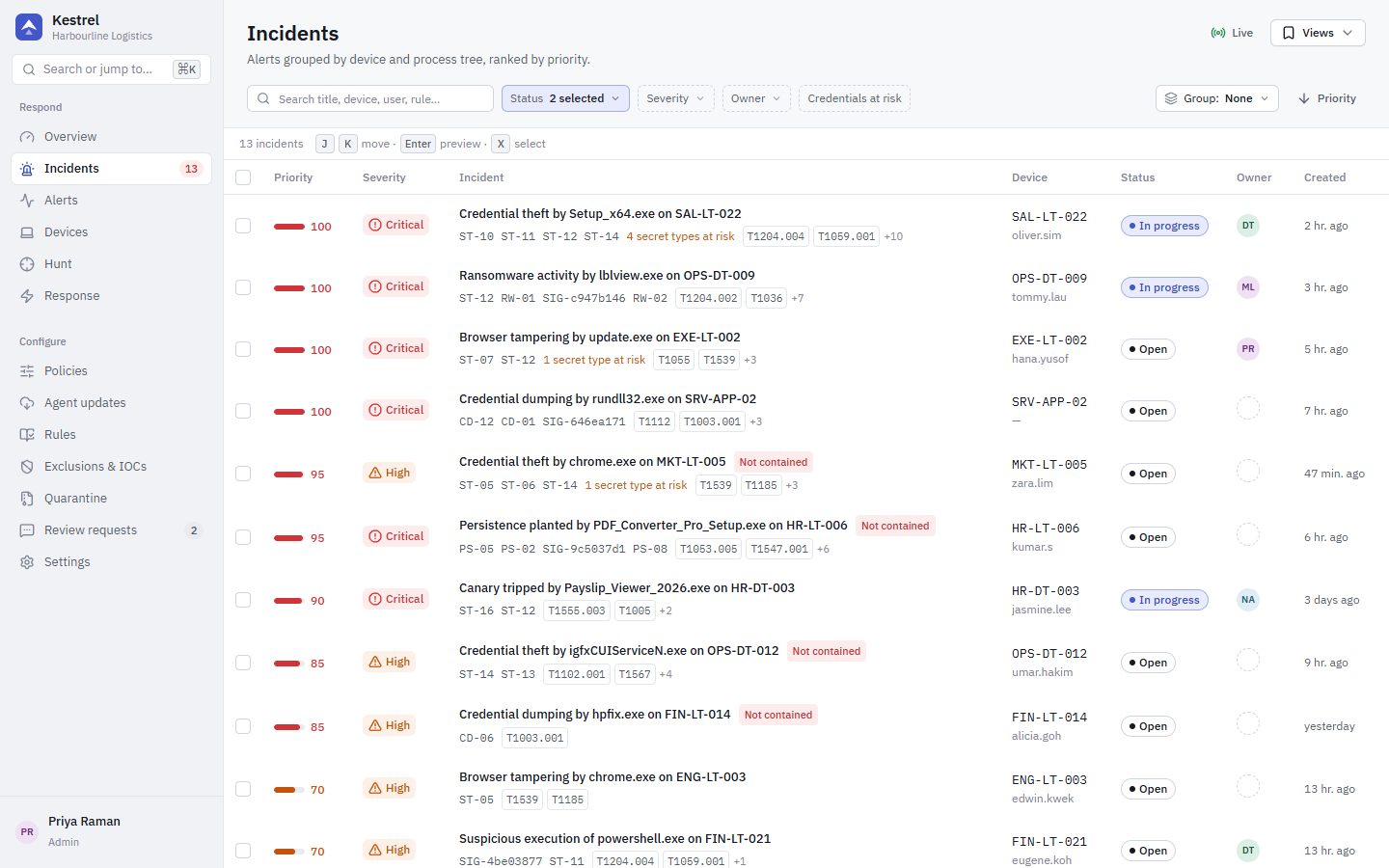
The triage queue. Alerts are grouped by device and process tree into incidents, sorted by priority (0 to 100). Filter by status, severity, assignee or device, and move through the queue with the keyboard (arrow keys, O to open). A marker shows when the program may still be running.
Incident
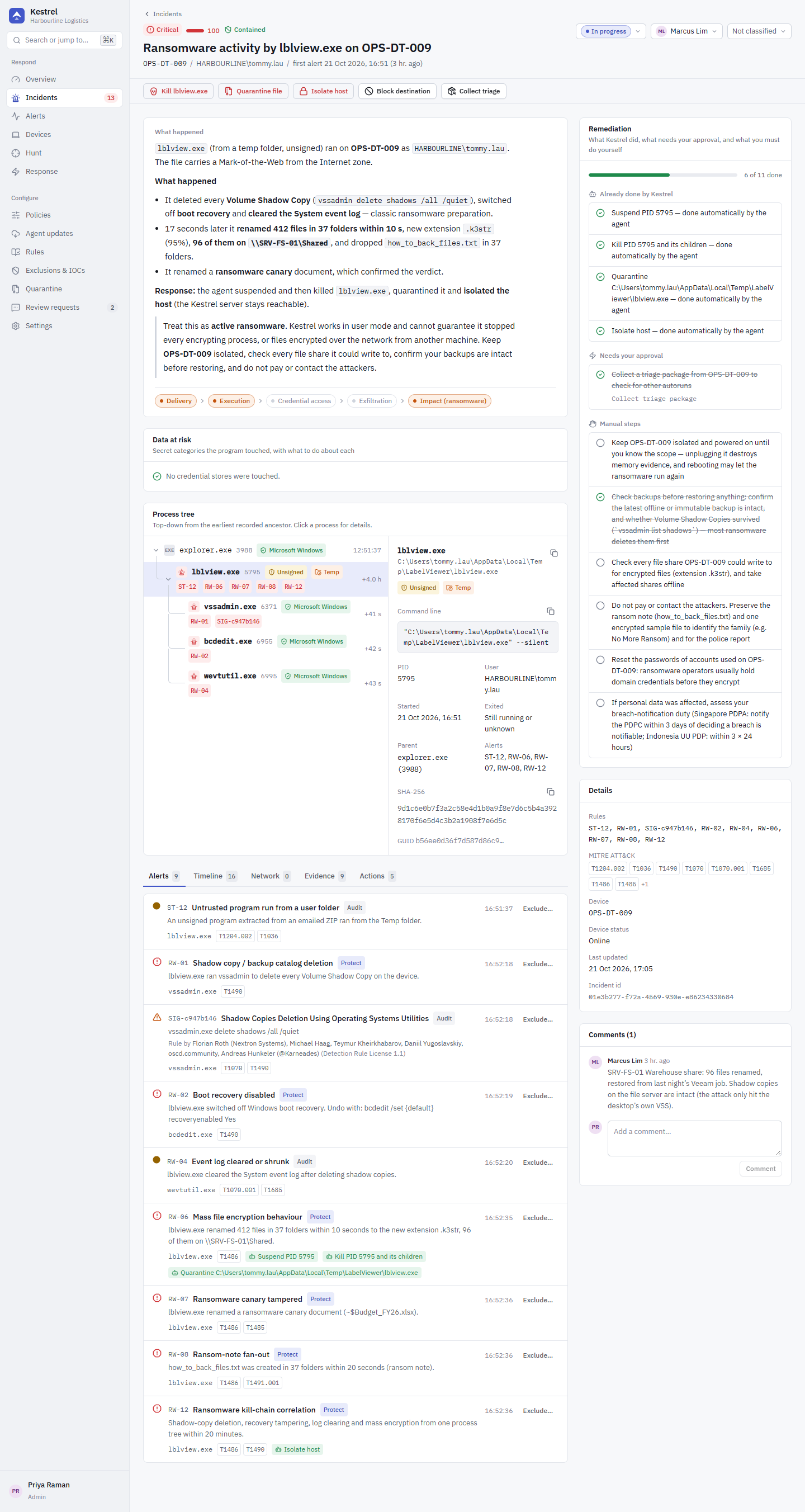
One incident in full: the plain-language storyline, the data at risk with what to do about each category, the process tree, and the remediation checklist (done, approve, manual). Set status, assignee and classification here, add comments, and approve the proposed response actions. Tabs show alerts, timeline, network connections, evidence and actions. Expanding an evidence row explains the event in plain words (for example which key a DPAPI decrypt unlocked, or whether a connection was a handshake or an upload), lists its key fields and keeps the raw event one click away.
Alerts
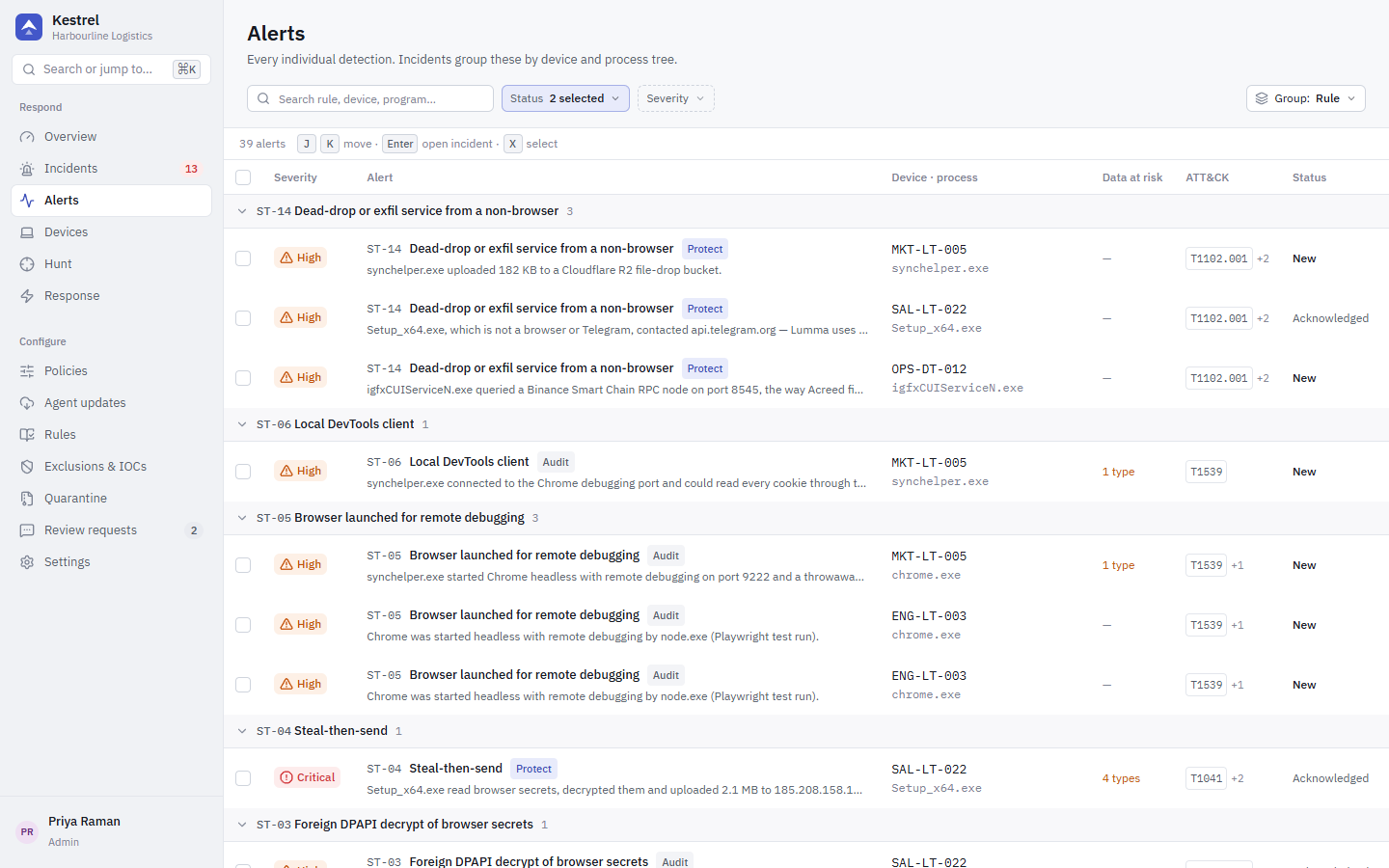
Every individual detection, including Audit-mode hits. Use it to review rules during rollout, acknowledge or close alerts in bulk, and create an exclusion from a false positive with Exclude..., which previews what the exclusion would hide.
Devices
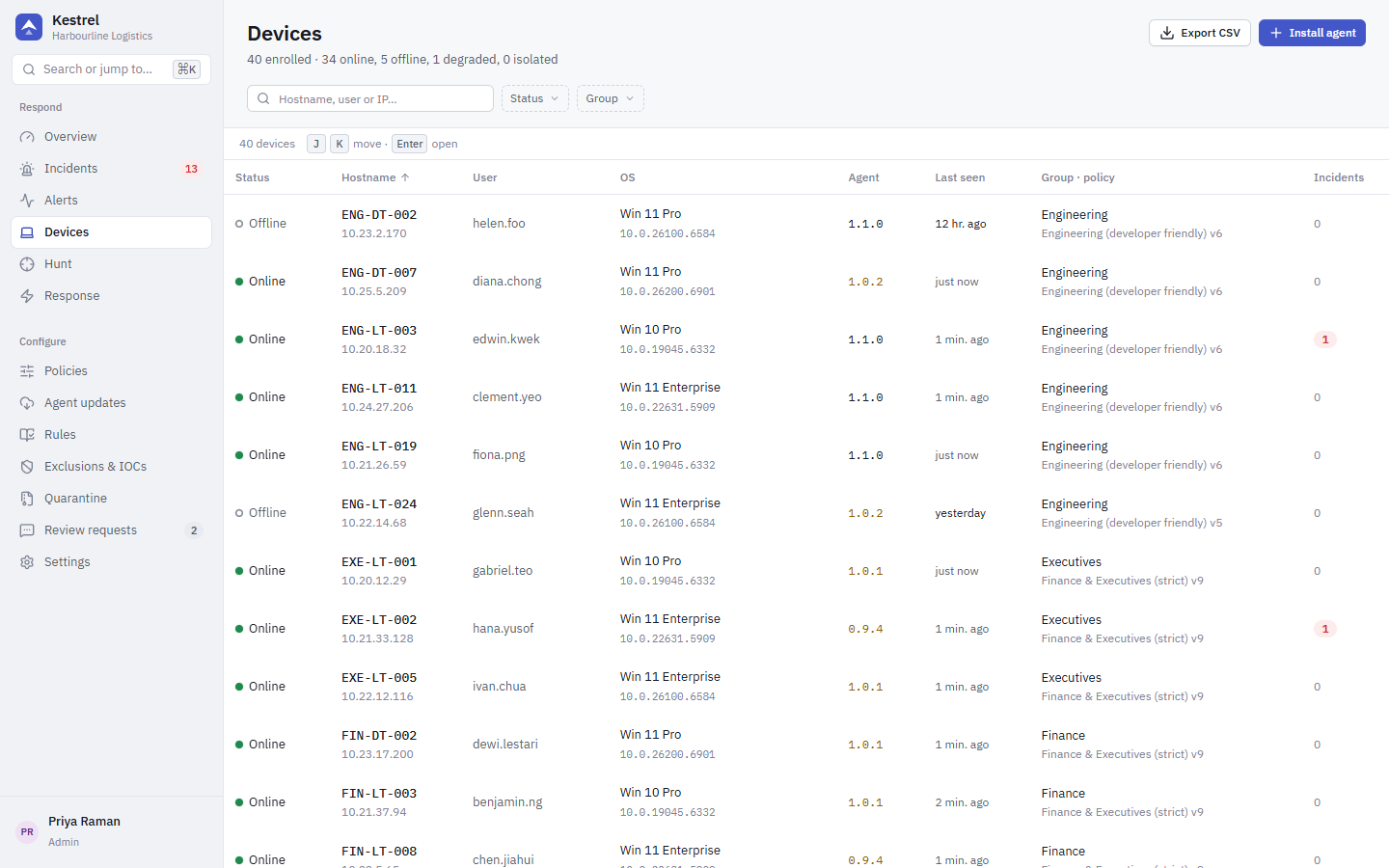
All enrolled devices with status (online, degraded, offline, isolated), user, OS, agent version (older versions are highlighted), last contact, group and policy. Install agent opens the install wizard, and Export CSV downloads the list.
Device
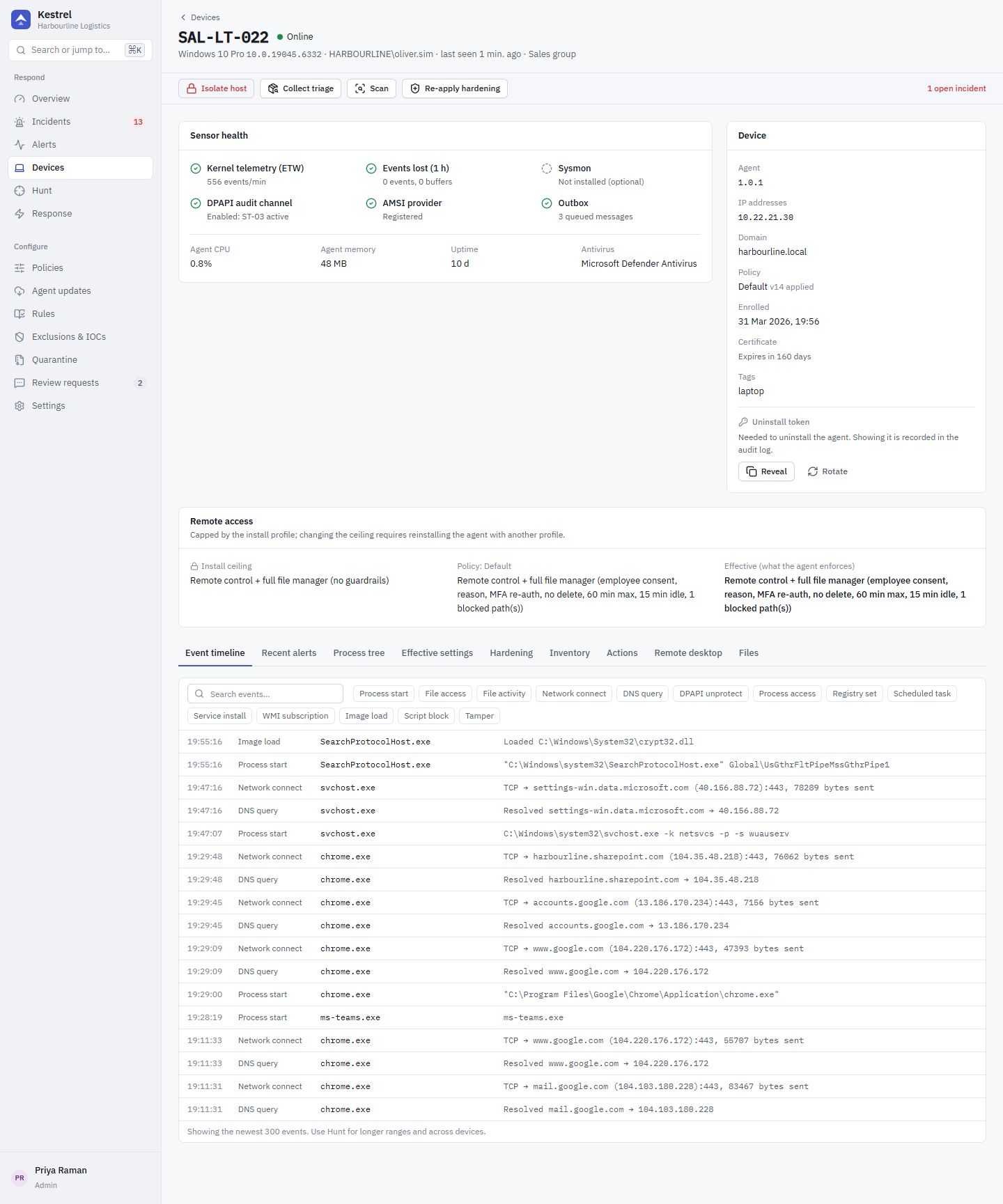
One device: sensor health (ETW, events lost, Sysmon, DPAPI audit channel, AMSI, outbox), agent CPU and memory, certificate expiry, uninstall token, and the actions toolbar (isolate or release, collect triage, scan, re-apply hardening). Tabs show the event timeline, recent alerts, process tree, effective settings, hardening state, inventory and the action history.
Remote desktop
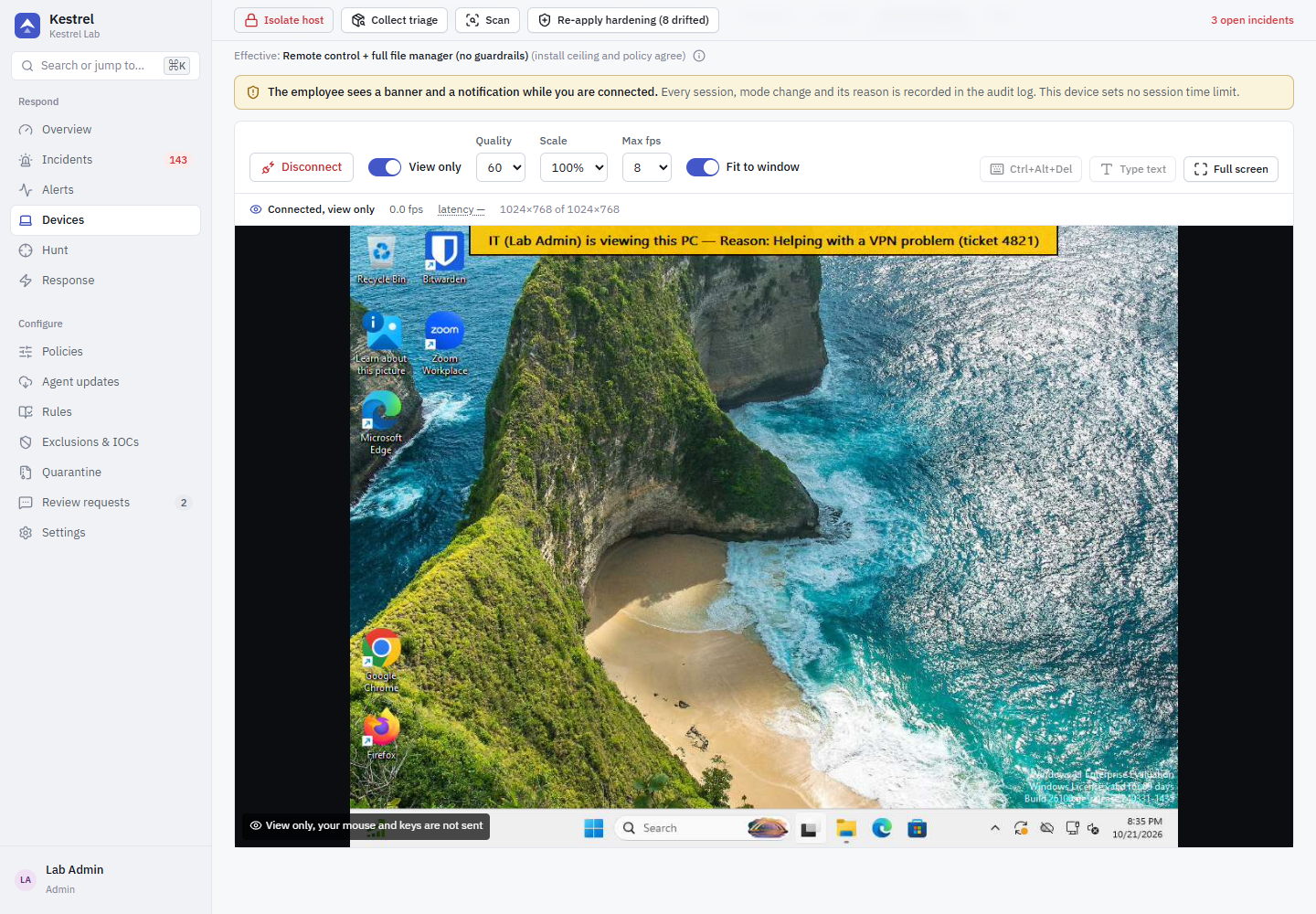
On devices whose install profile and policy both allow it, administrators can view or control the signed-in user's screen. The employee always sees a banner and a tray notification. Depending on the profile, a reason, an MFA re-check and the employee's consent are required first. See Remote access.
Files
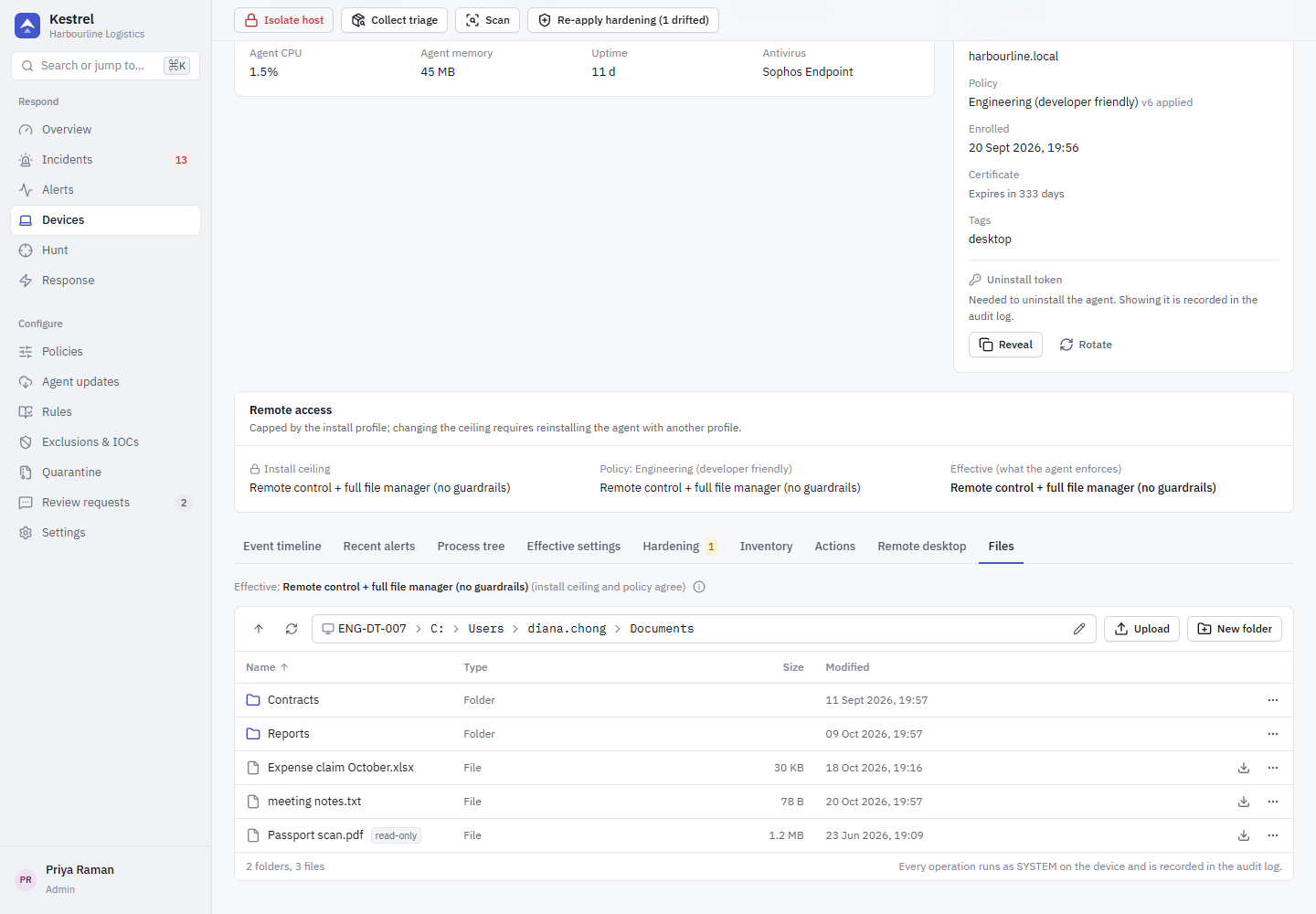
The remote file manager: browse drives, download, and (if the profile allows) upload, rename, move, delete and create folders. It runs as SYSTEM on the device. Kestrel's own folders, blocked folders and network paths are always refused, and every operation is written to the audit log with the SHA-256 of each transfer.
Hunt
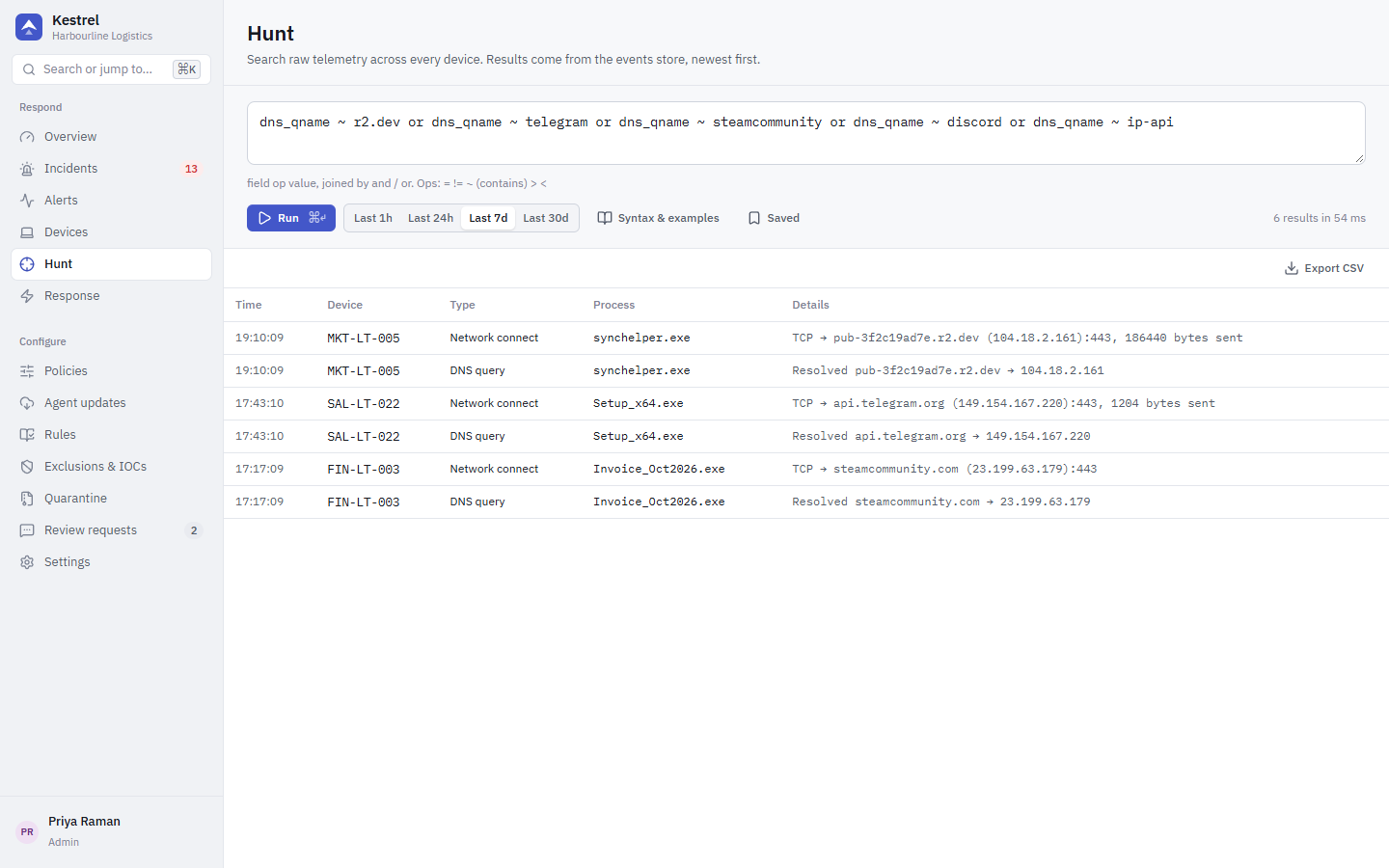
Search stored telemetry with a small filter language, for example event_type = dns_query and dns_qname ~ telegram. Syntax & examples lists the fields and ready-made queries; queries can be saved in your browser. Every hunt query is recorded in the audit log. See Hunting.
Response
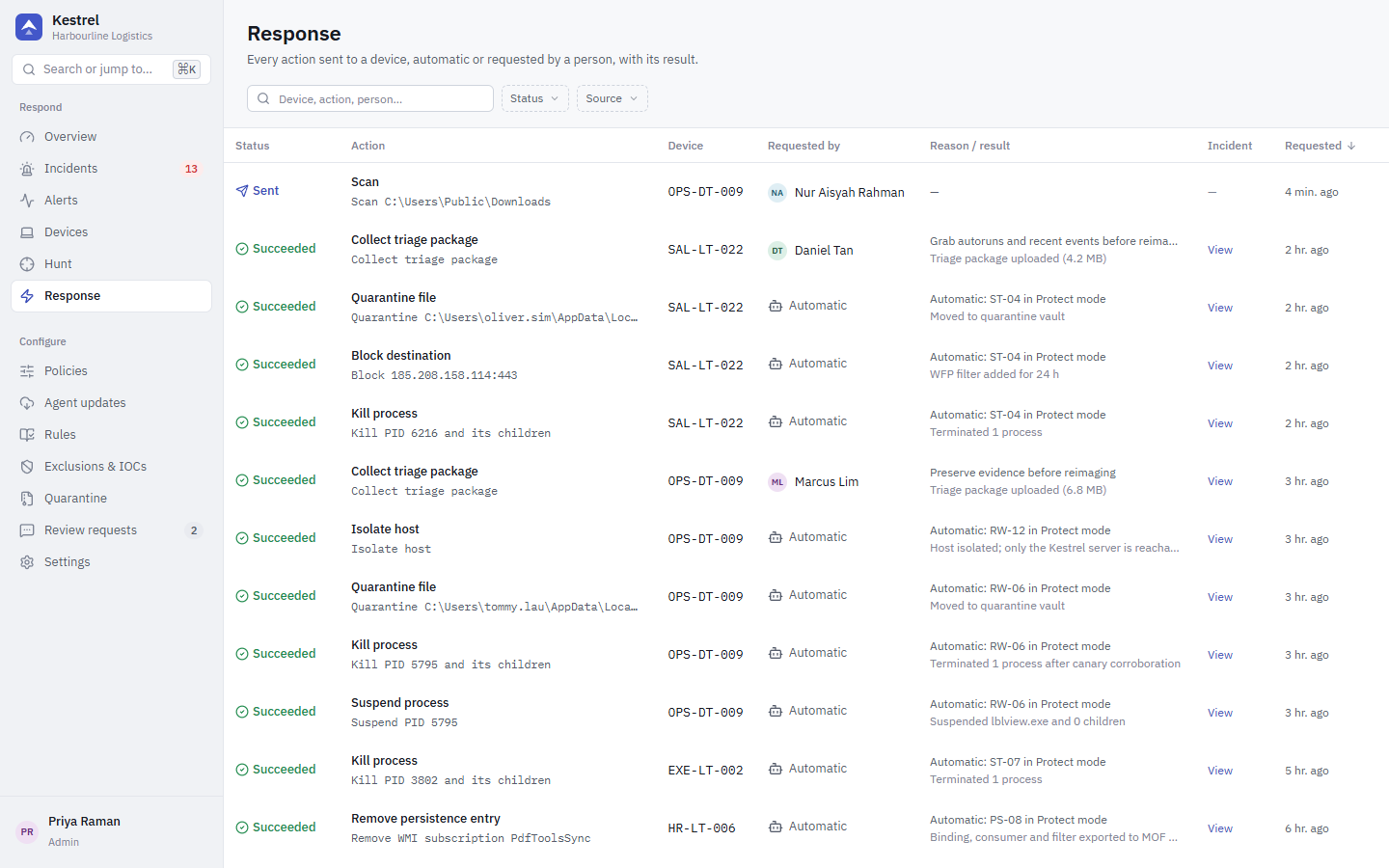
Every response action sent to a device, automatic (from a Protect rule) or requested by a person, with its status (pending, sent, succeeded, failed, expired) and result. Actions for offline devices wait here until the device reconnects, for up to 7 days.
Policies
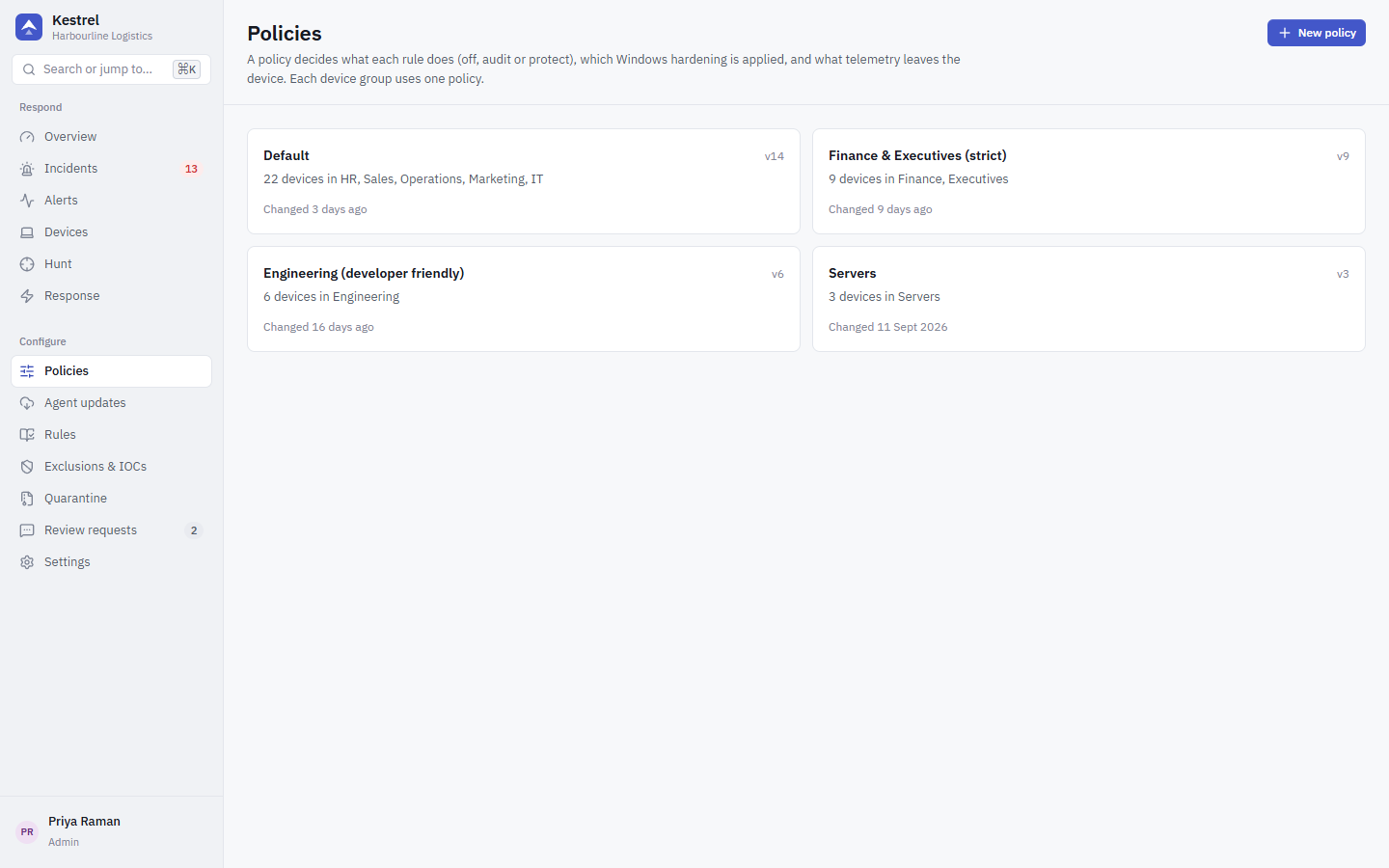
The list of policies. Each device group uses one policy, and each device shows which policy version it has applied. Open a policy to edit it.
Policy
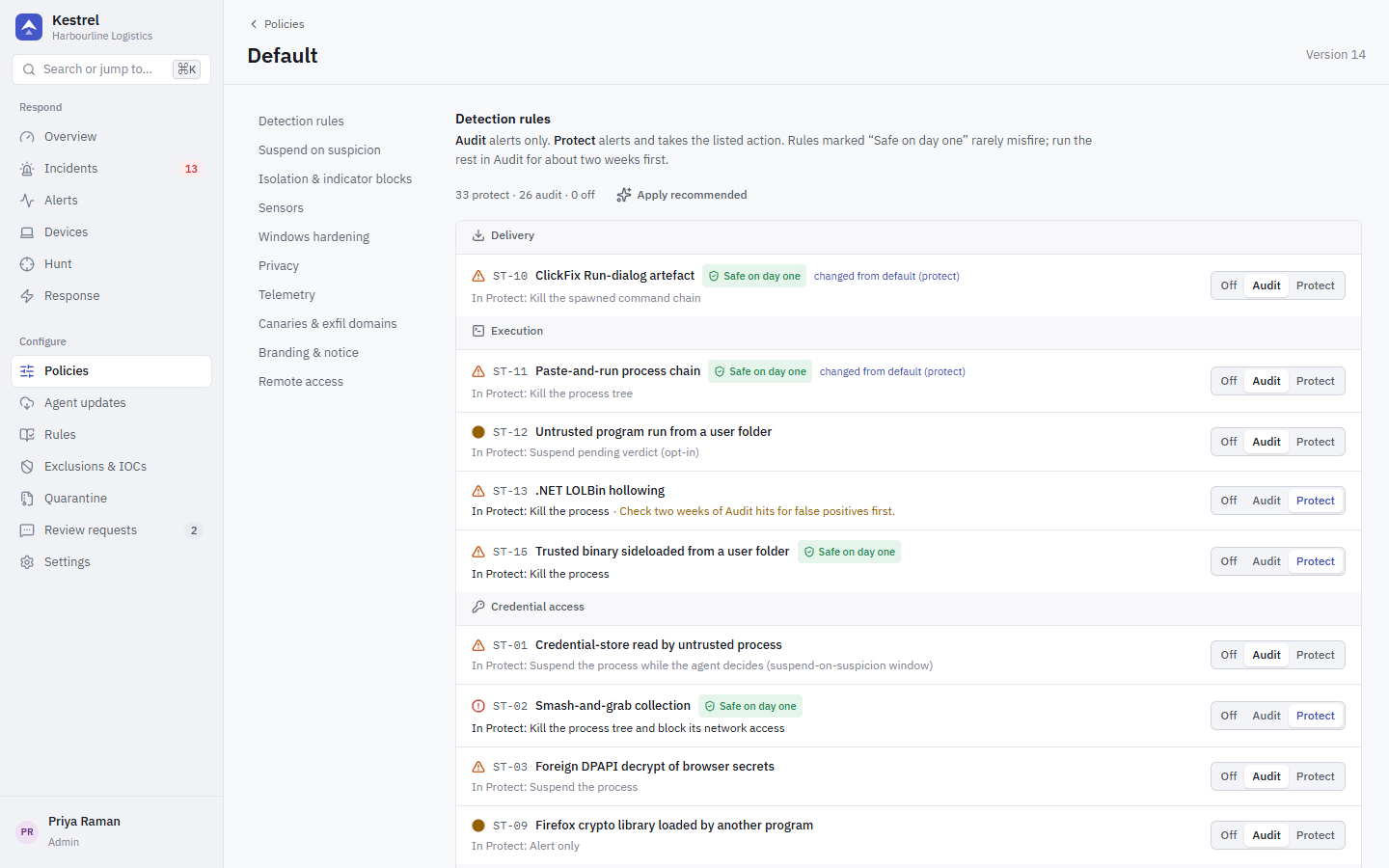
The policy editor: rule modes (Off, Audit, Protect), suspend window, isolation auto-release and indicator blocks, optional sensors, Windows hardening (Off, Audit, Enforce per control), privacy, telemetry, canaries and exfiltration domains, branding and the employee notice, and remote access. See Policies.
Agent updates
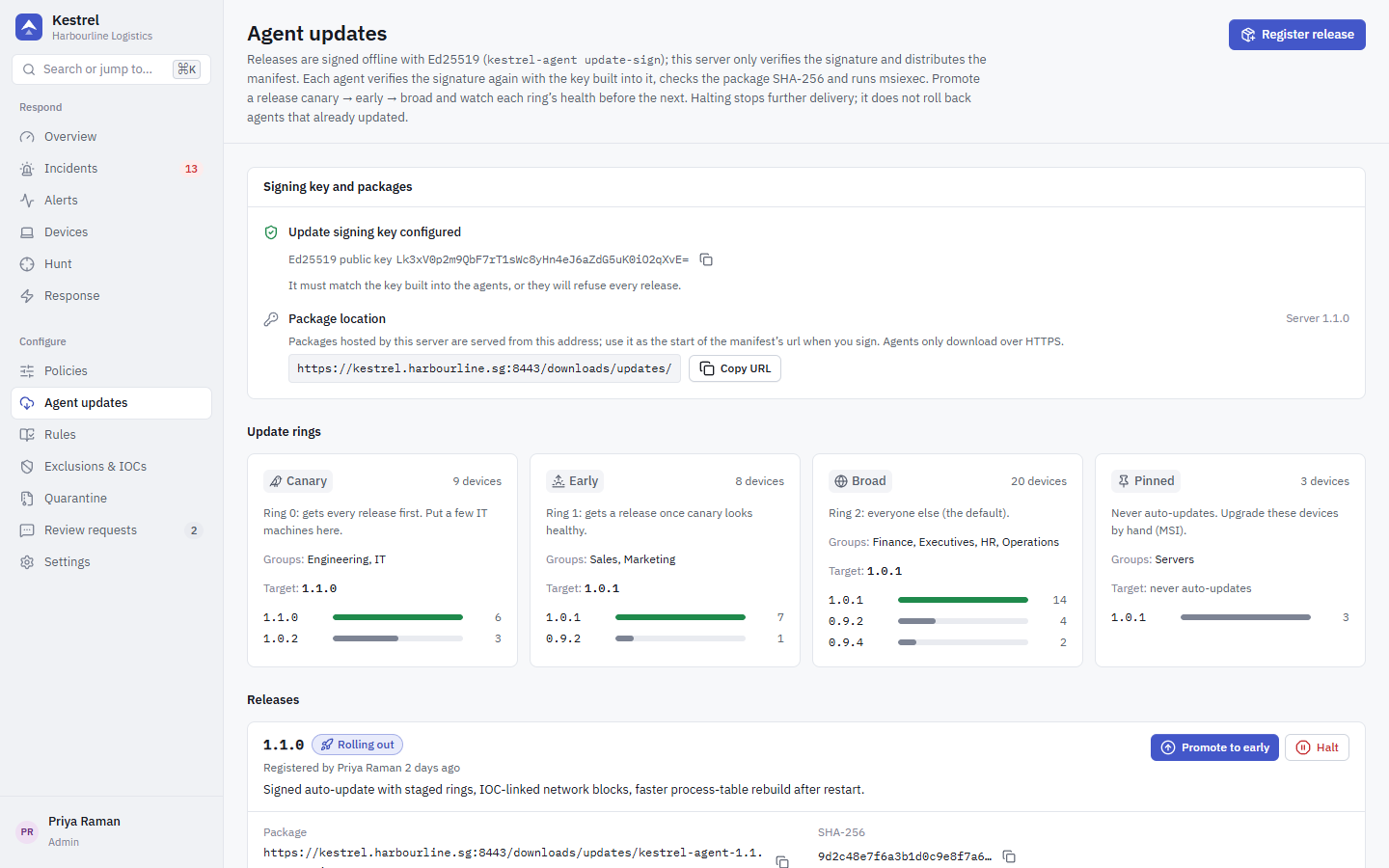
Register signed agent releases and promote them ring by ring (canary, early, broad), checking each ring's health in between. Halt stops further delivery. The page also shows whether the update signing key is configured and where server-hosted packages are served from. See Agent updates.
Rules
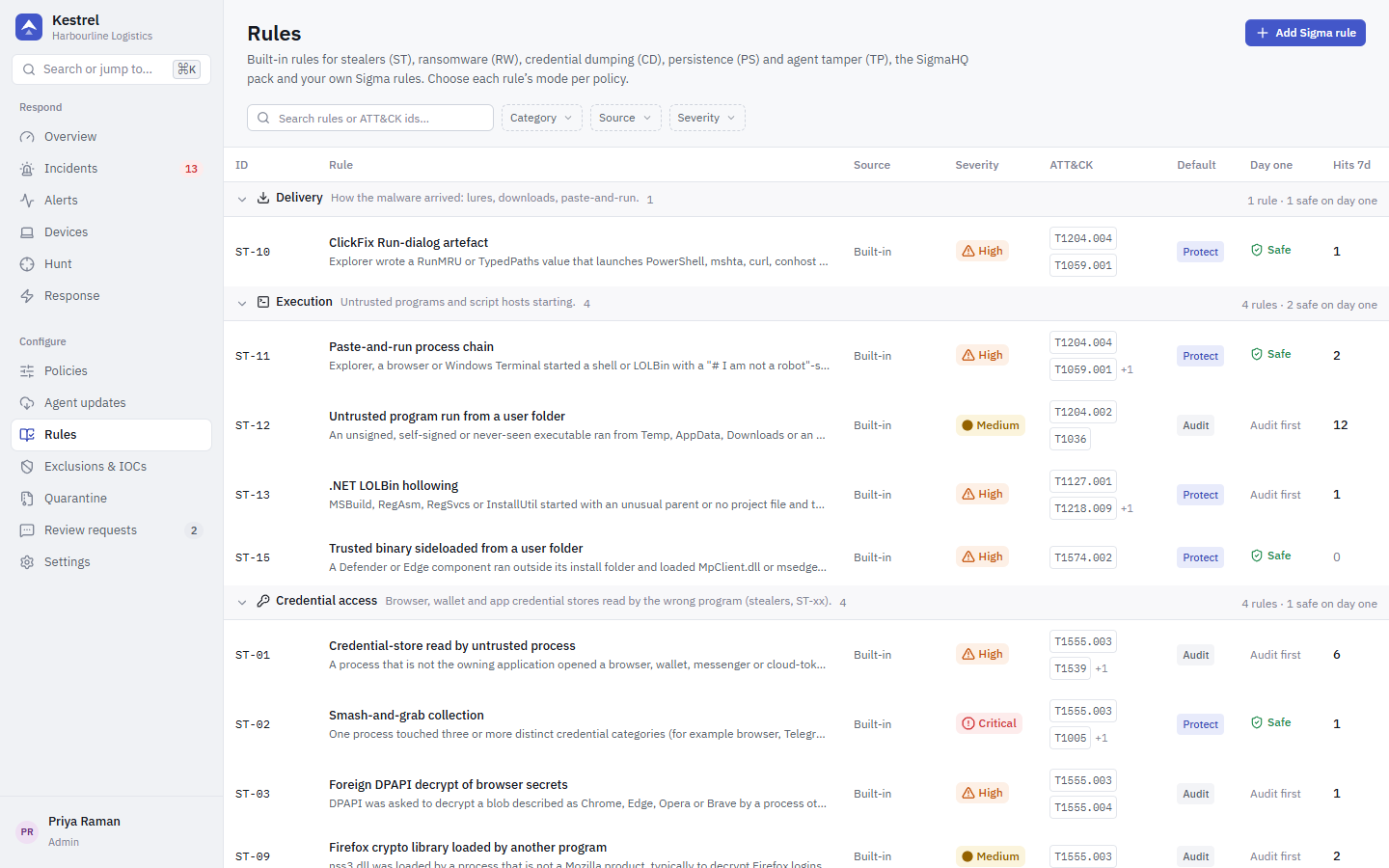
The rule catalog grouped by family: stealer (ST), ransomware (RW), credential dumping (CD), persistence (PS), tamper (TP), the SigmaHQ pack and your own Sigma rules. Each group shows how many rules are safe on day one. Add Sigma rule opens the Sigma editor.
Rule
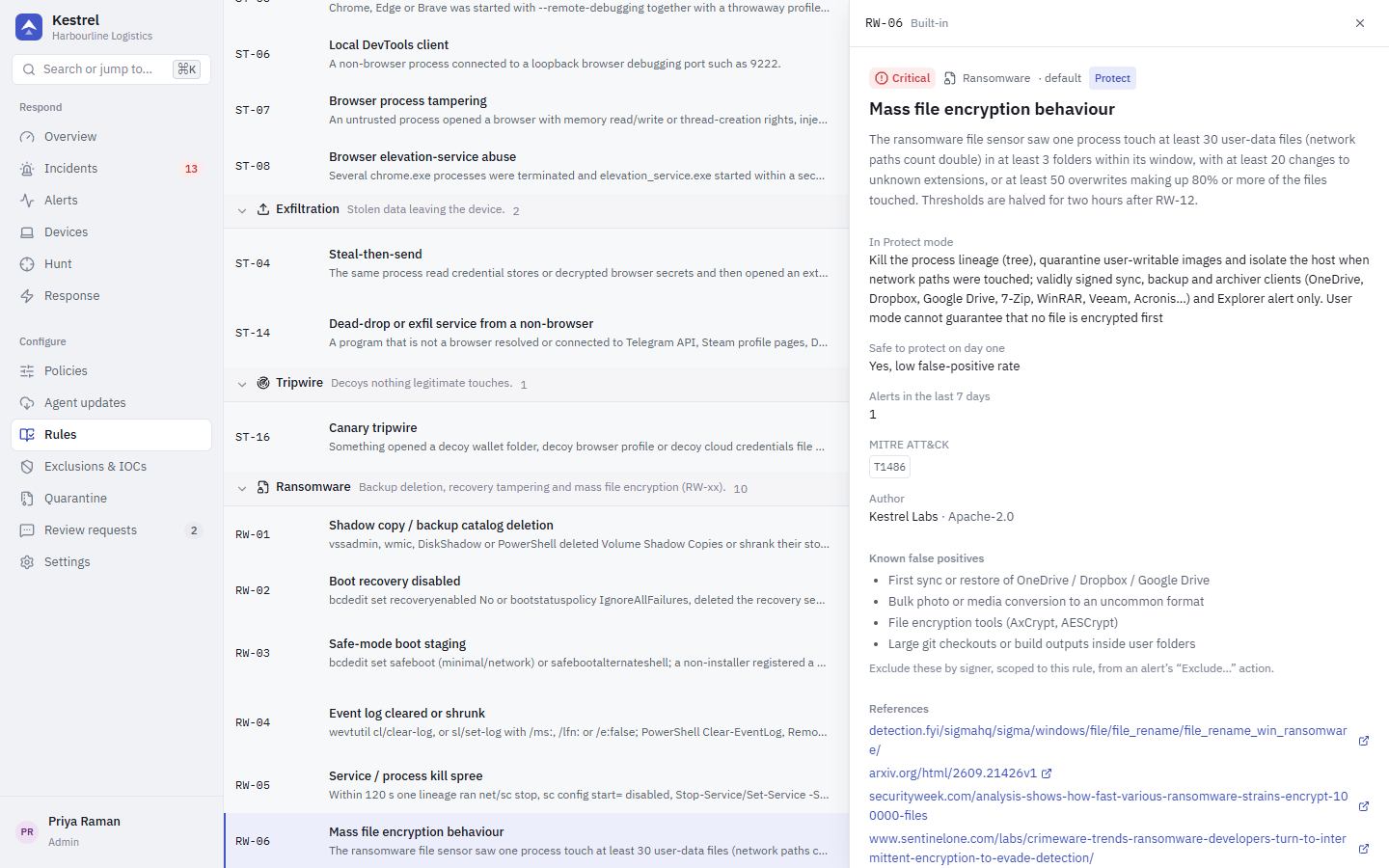
One rule: what it detects, its ATT&CK techniques, severity, default mode, what Protect mode does, references and known false positives. SigmaHQ rules show their authors, the DRL 1.1 licence and the pinned upstream link; custom Sigma rules show their source and can be edited or deleted.
Exclusions & IOCs
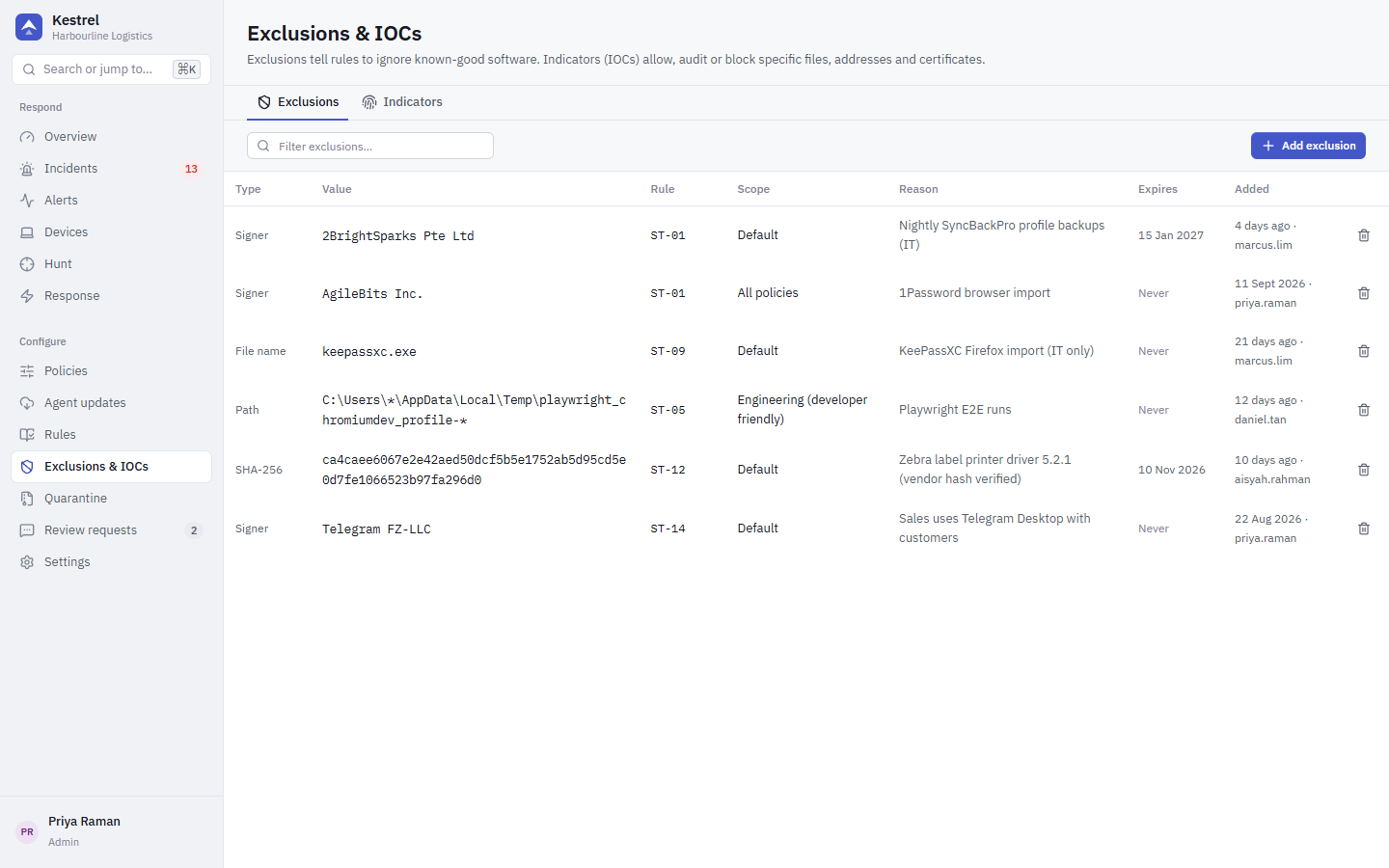
Exclusions tell rules to ignore known-good software (by path glob, SHA-256, signer or image name; global or per rule; with optional expiry). Indicators (IOCs) allow, audit or block specific hashes, IP addresses, domains, URLs and certificates everywhere. See Rules, exclusions and IOCs.
Quarantine
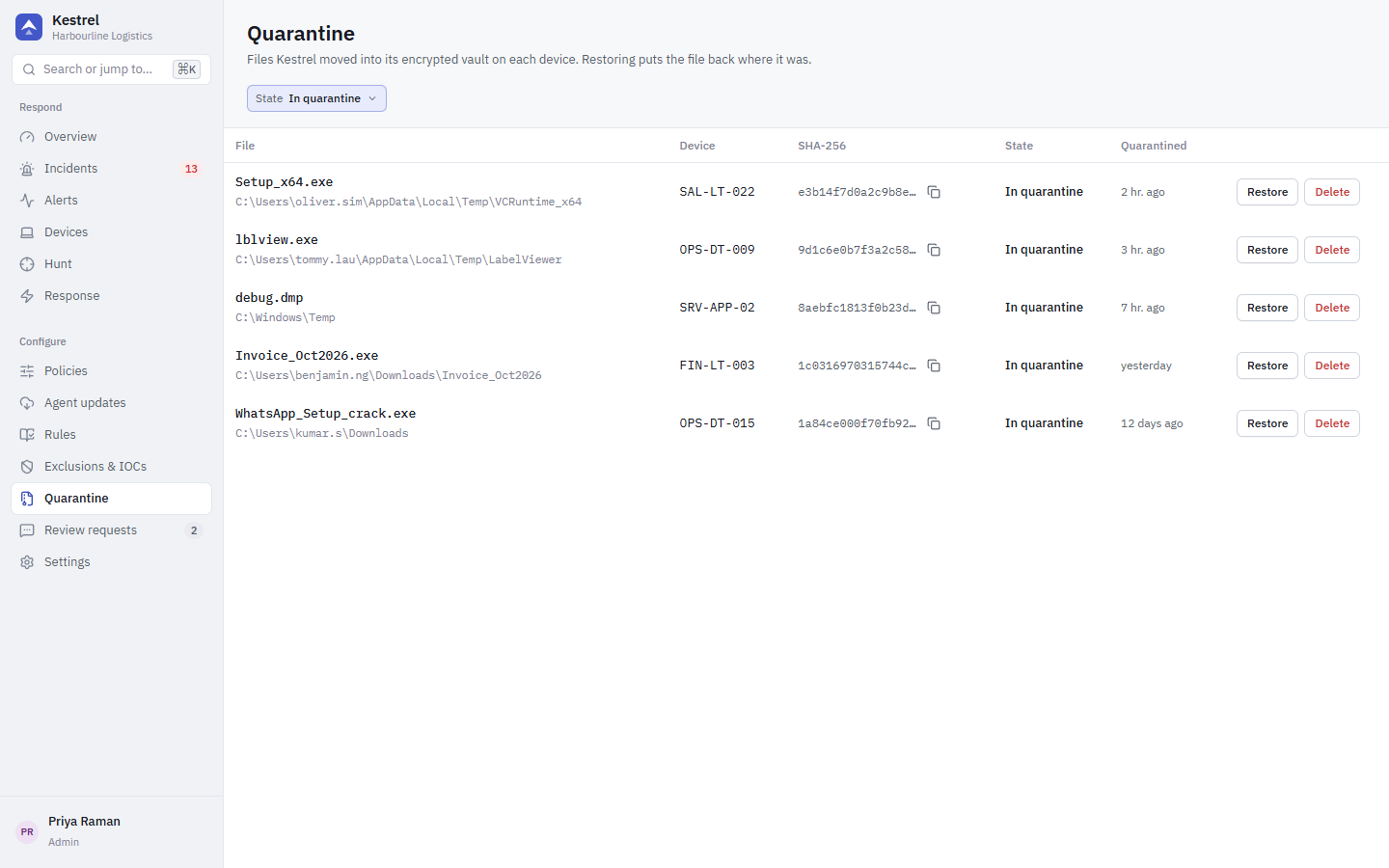
Files Kestrel moved into the encrypted vault on each device, with their state (in quarantine, restored, deleted). Restore puts a file back where it was; Delete removes it from the vault.
Review requests
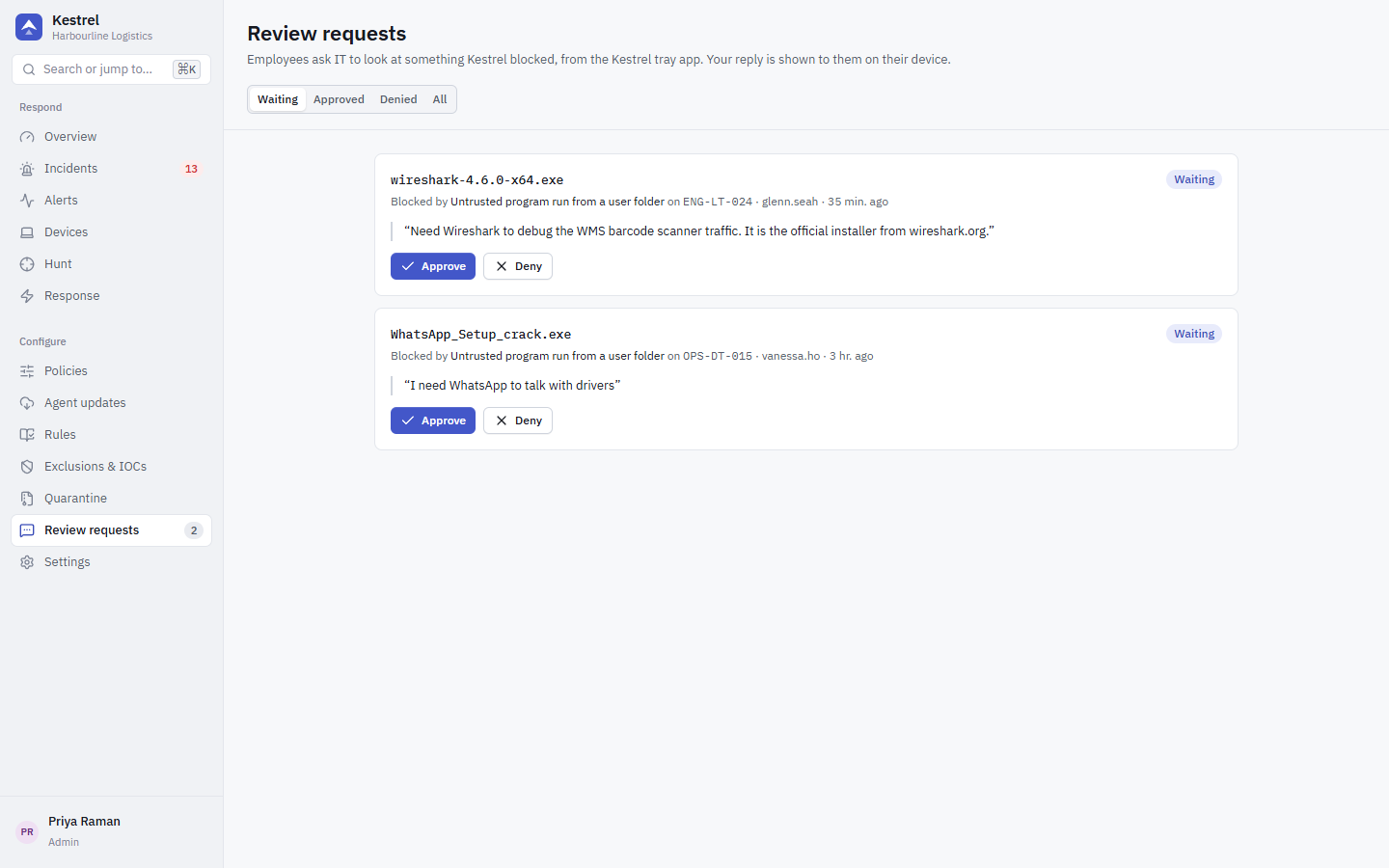
Requests employees sent from the tray app about something Kestrel blocked, with their reason. Approve creates a narrow exclusion (by SHA-256 or valid signer, for that rule only, expiring after 90 days); Deny keeps the block. The employee sees your decision on their device.
Settings
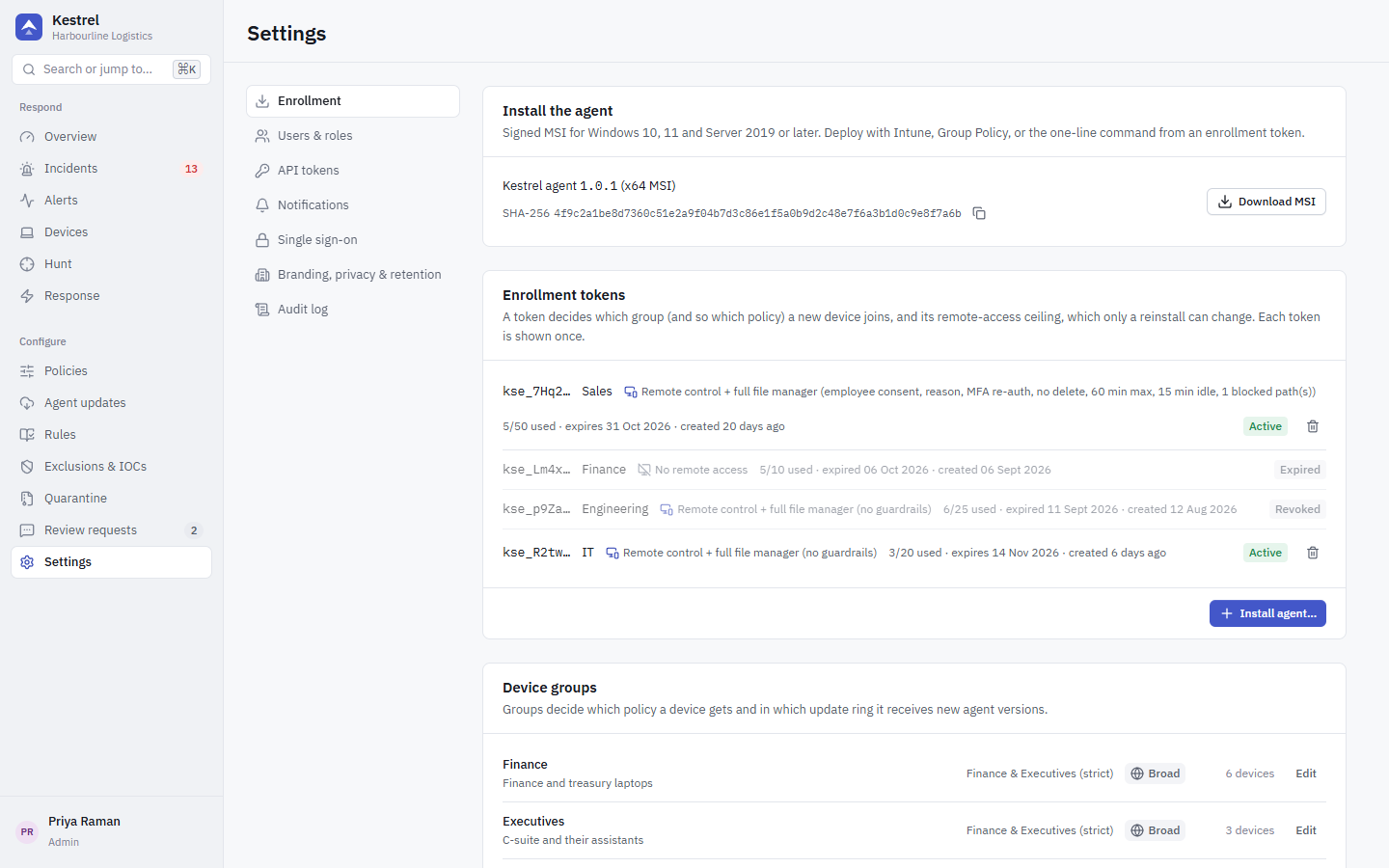
Enrollment (install wizard, tokens, device groups and update rings), users and roles, API tokens, notifications, single sign-on and sessions, branding, privacy and retention, and the audit log. See Settings.
Install wizard
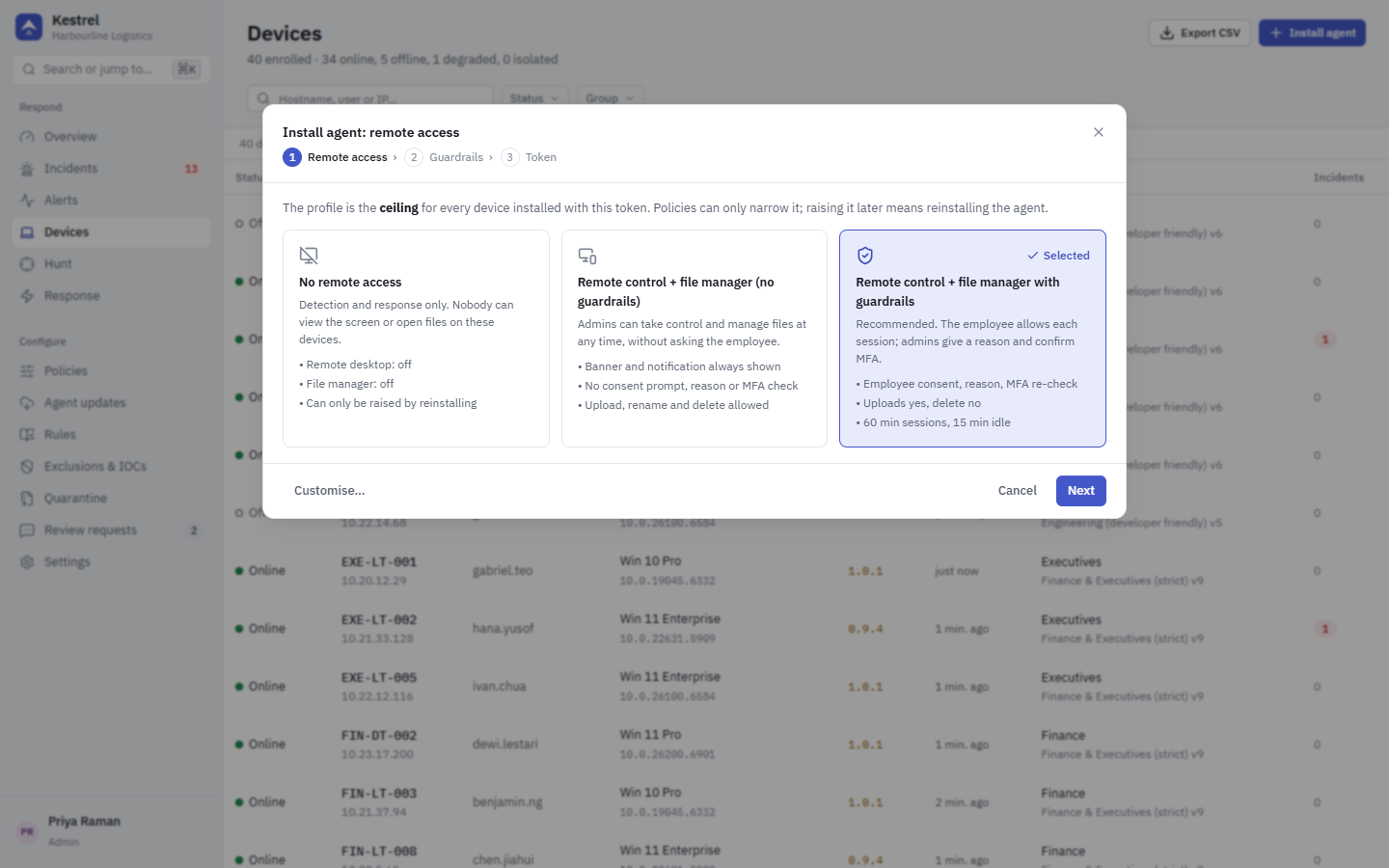
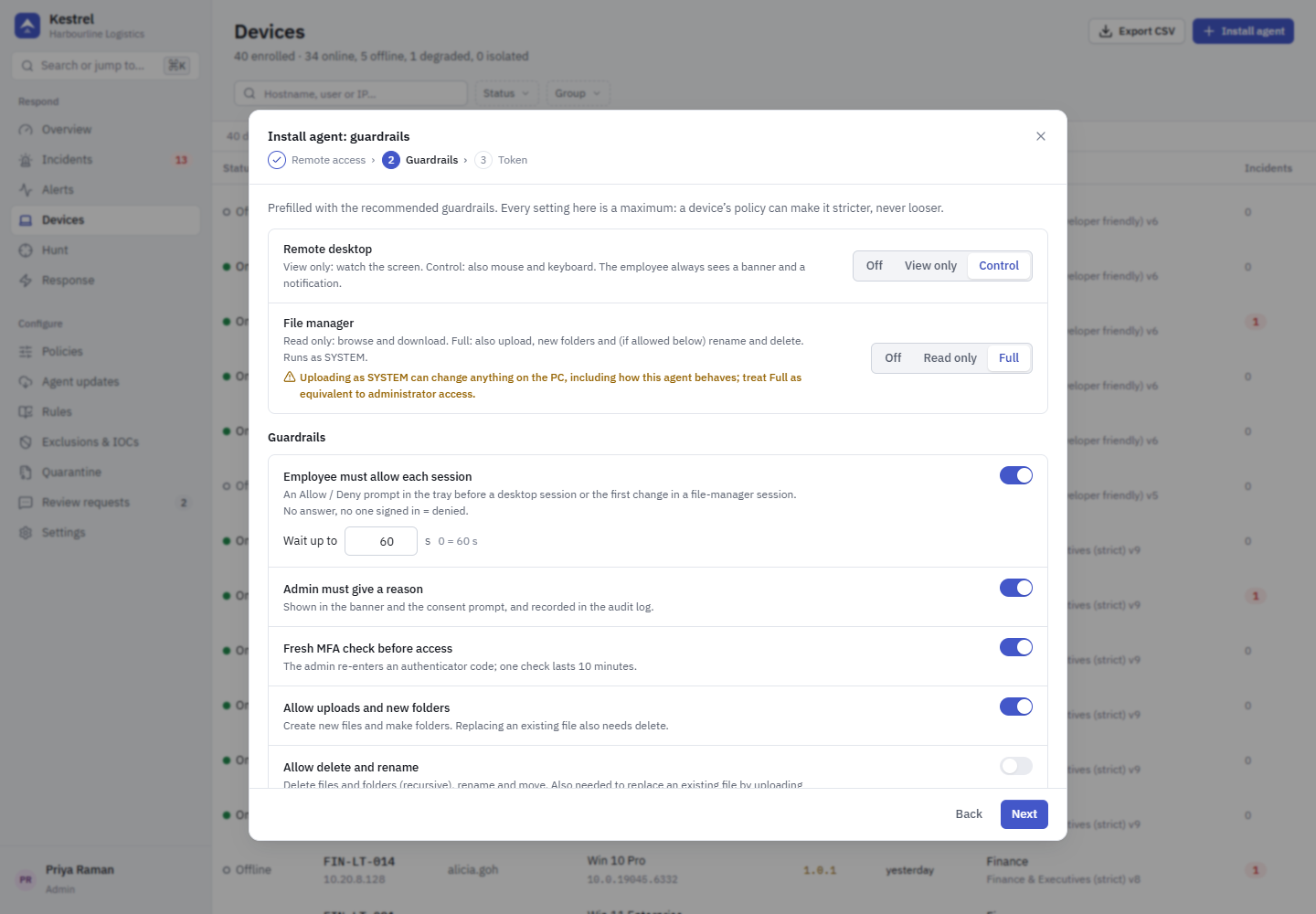
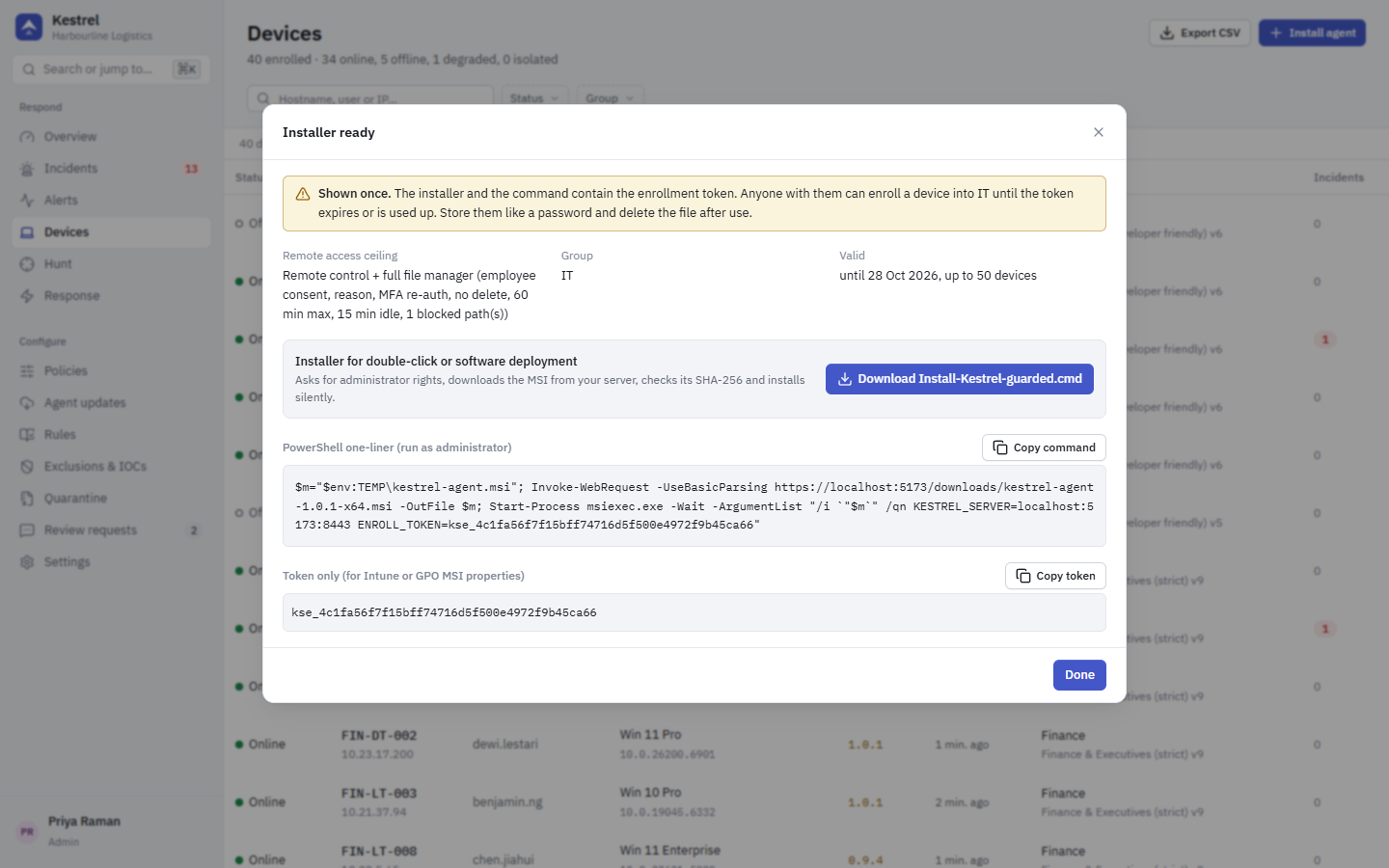
Creates an enrollment token in three steps: remote-access profile, guardrails (for guarded or custom profiles) and token settings (group, validity, device limit). The result, shown once, is a ready-to-run Install-Kestrel-<profile>.cmd, a PowerShell one-liner and the bare token. See Enroll devices.