
Devices
Devices lists every enrolled endpoint with its status, signed-in user, OS and build, agent version (versions older than the newest in the fleet are highlighted), last contact, group, policy and open incidents. Filter by hostname, user, IP, status or group, and export the list with Export CSV. Install agent opens the install wizard (see Enroll devices).
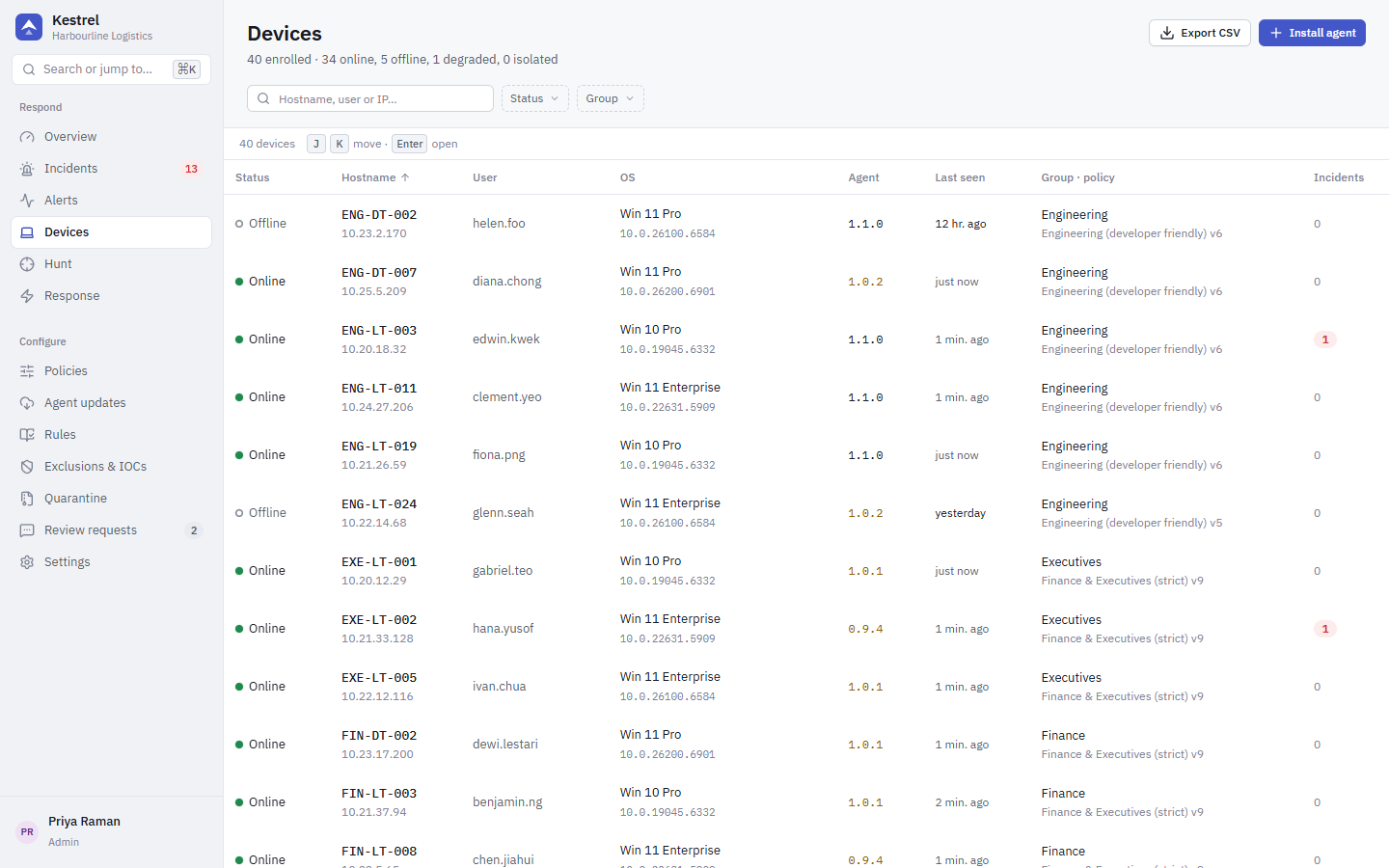
Device status
| Status | Meaning |
|---|---|
online | Connected and healthy. |
degraded | ETW is unhealthy or events were lost in the last hour. |
offline | No contact for 3 minutes. Detection and Protect actions still run on the device; results upload when it reconnects. |
isolated | The agent reports network isolation. |
paused | Shown as Protection off: someone turned protection off on the PC with the uninstall token. See Protection turned off on the device. |
When more than one applies, the first one in this order wins: isolated, offline, protection off, degraded, online.
The device page
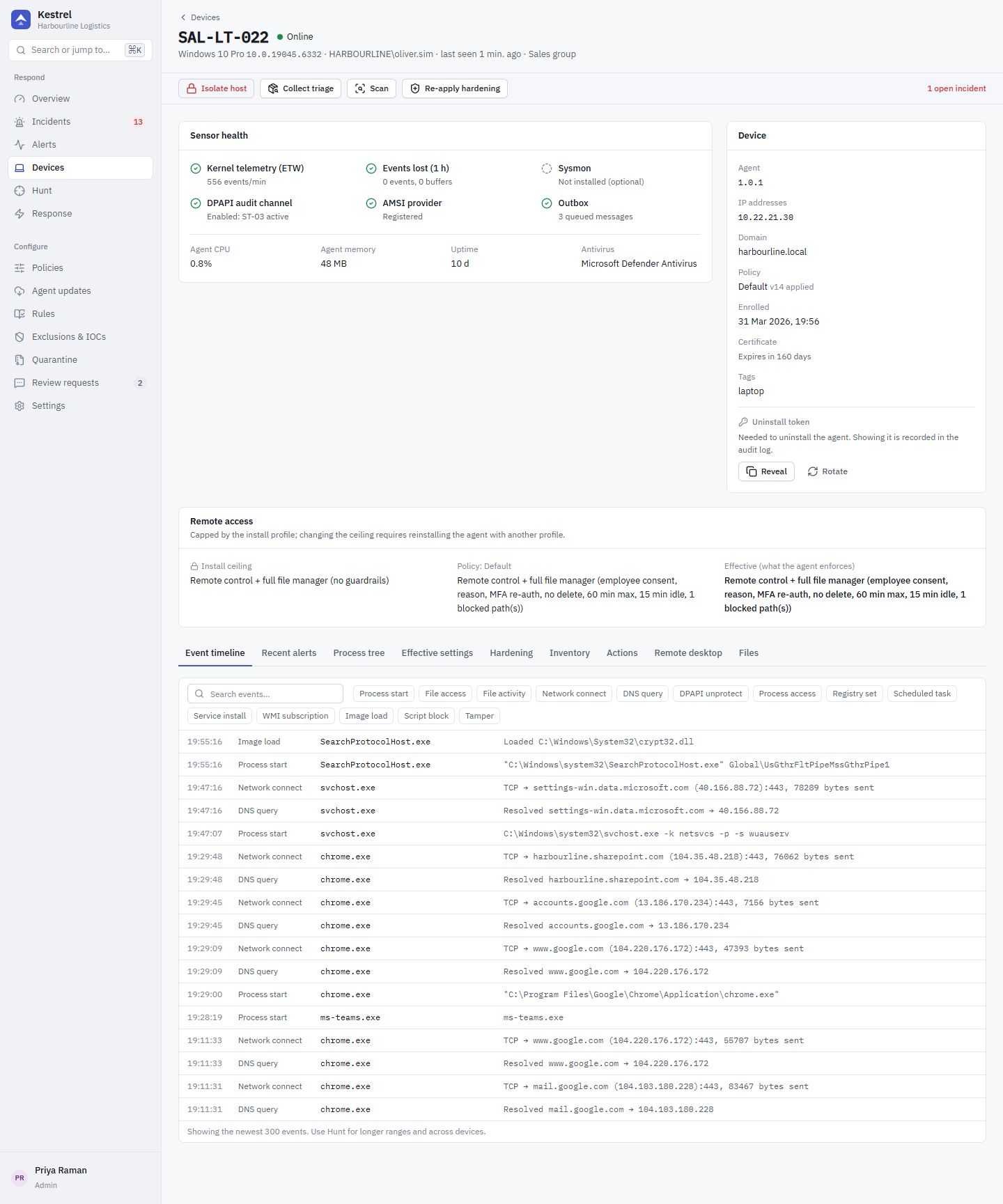
The header shows hostname, status, OS, signed-in user, last contact and group. The toolbar below it holds device-wide actions: Isolate host or Release host, Collect triage, Scan and Re-apply hardening (with the number of drifted controls). See Response actions.
Sensor health
| Row | Meaning | If it is not green |
|---|---|---|
| Kernel telemetry (ETW) | All ETW sessions running; events per minute | Check logman query Kestrel-Core -ets on the device and the agent logs in C:\ProgramData\Kestrel\logs. |
| Events lost (1 h) | ETW events or buffers lost | Heavy I/O can drop events. More than 500 lost between heartbeats raises TP-SRV-EVENTS-LOST. |
| Sysmon | Optional; adds handle-access detail | Not required. |
| DPAPI audit channel | Optional. Needed by rule ST-03 | Shown grey while off. To use ST-03, turn on the DPAPI audit channel hardening control in the policy. |
| AMSI provider | Not used in this version | Shown grey. Kestrel 1.1 reads script content from PowerShell script-block logging instead; an AMSI provider is on the roadmap. AMSI tampering is still detected by TP-03. |
| Outbox | Messages queued on the device | Should drain to about 0 while online. |
The card also shows agent CPU, memory, uptime and the antivirus product.
Device card
Agent version, IP addresses, domain, policy and the policy version applied, enrollment time, certificate expiry (agents renew automatically 30 days before), tags, and the uninstall token:
- Reveal shows the token (written to the audit log). You need it for
msiexec /x,kestrel-agent uninstalland the isolation break-glass. - Rotate sends a new token to the agent. A pending marker shows until the agent confirms; the old token works until then.
If another device was enrolled with the same hardware UUID, a banner offers to merge the two (the other device is decommissioned) or dismiss the warning.
On devices with a remote-access profile, a summary card shows the install ceiling, what the policy allows and the effective result.
Tabs
| Tab | Contents |
|---|---|
| Event timeline | Telemetry from the device in plain words (process starts, file access, network, DNS, registry, tasks, services, WMI), Expand a row for a plain-language explanation and the key fields, with the raw event one click away (see Reading evidence). Registry and persistence events show writer inferred or writer unknown when the writing process could not be pinned down exactly. Processes the agent itself started are labelled started by Kestrel. |
| Recent alerts | Alerts on this device. |
| Process tree | Running and recent processes with signer, hash and path class. |
| Effective settings | The policy as the device receives it, including exclusions, IOCs and branding. |
| Hardening | Each hardening control with what the policy wants, what is on the device, and the source (Kestrel, or a domain or MDM policy that Kestrel leaves alone). Controls that need a restart show Pending reboot. |
| Inventory | Installed software (name, version, publisher) and local administrators. |
| Actions | Process, file and network actions for this device, and the action history. |
| Remote desktop, Files | Only when the install profile and the policy both allow remote access. See Remote access. |
Protection turned off on the device
An employee or on-site technician can turn Kestrel protection off for a while from the tray app, for example to install a tool that Kestrel blocks. It needs the device's uninstall token, and the policy decides whether it is allowed, which modes can be chosen and for how long (see Local turn-off).
While protection is off:
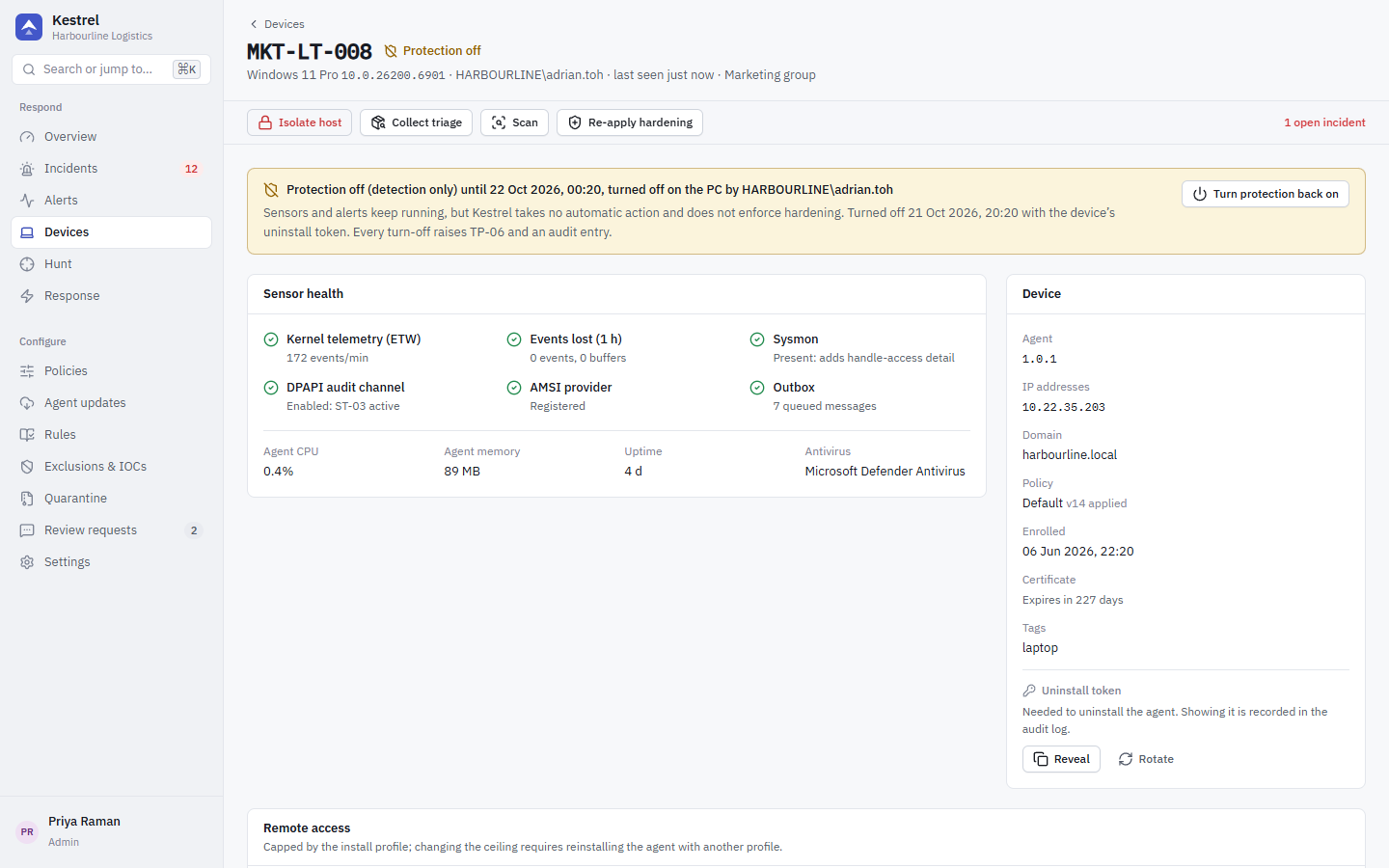
- The device shows the status Protection off (icon and label) in the devices list, on the device page and on incidents. Filter the devices list by status to find every such device; the Overview counts them too.
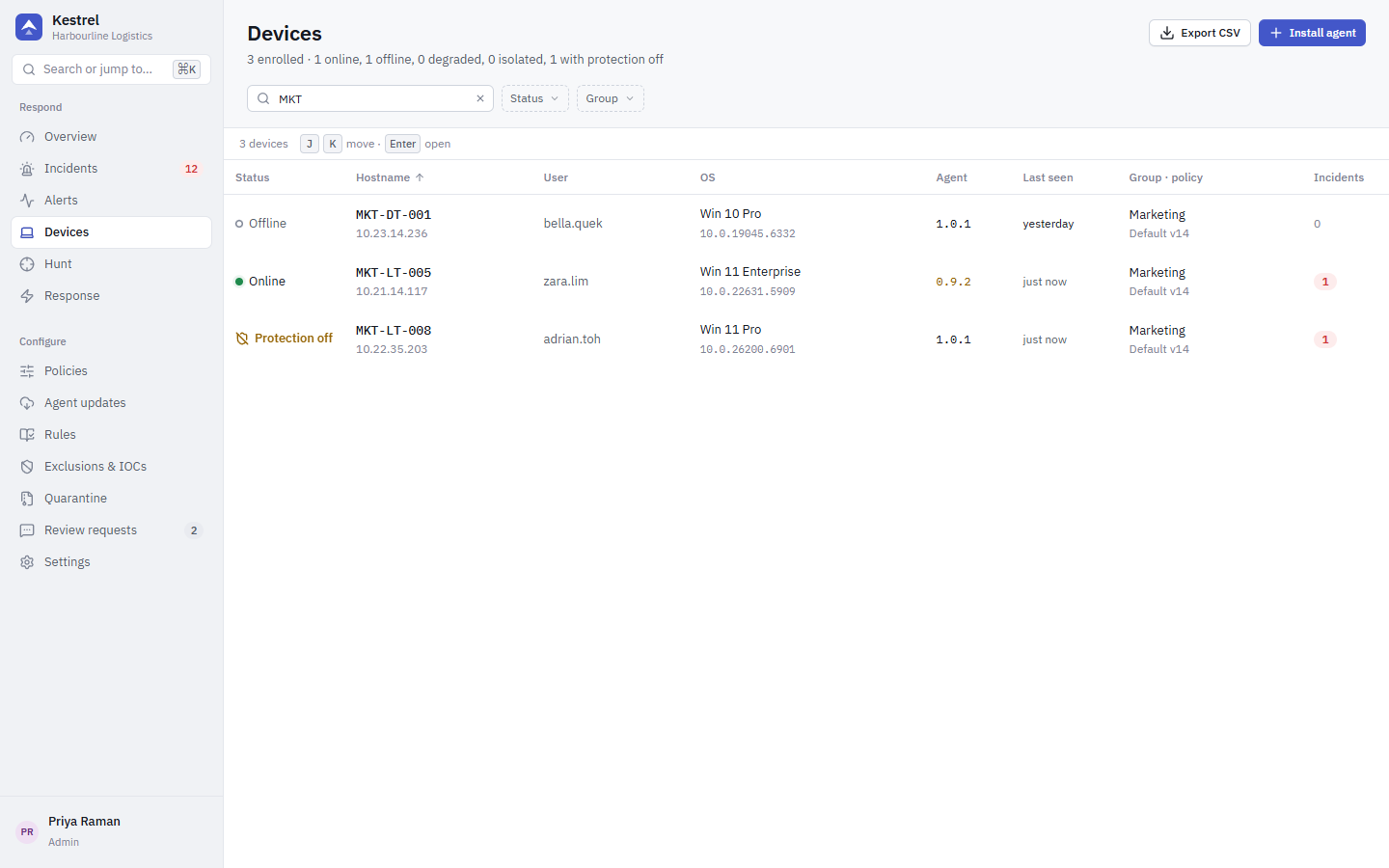
- The device page shows a banner with the mode, the time protection comes back on by itself (or until turned back on), who turned it off and when.
- Detection only (the default): sensors and alerts keep running, but Kestrel takes no automatic action (no suspend, kill, quarantine or block) and does not enforce hardening. Every alert from the device is recorded in Audit mode and carries the note Protection was turned off on this PC (detection only): no automatic action was taken. Actions you send from the console still run.
- Completely off (only if the policy allows it): the sensors are stopped and the device only sends heartbeats, so nothing on it is detected.
- Every turn-off raises a
TP-06alert (medium for detection only, high for completely off). Turning it back on raises an infoTP-06alert, and wrong uninstall tokens raise a medium one. After 5 wrong tokens the tray locks the switch for a while, and the lockout grows with each further failure.
Turning protection back on
Click Turn protection back on in the banner, give a reason and confirm. This sends the resume_protection action (privilege response.collect). It never needs the token. The device goes back to its policy at once; a device that is offline does it when it reconnects. The person at the PC can also turn it back on from the tray, and a timed turn-off ends by itself.
Turning protection off is not a substitute for an exclusion. If a business tool is blocked, add an exclusion so the rest of the PC stays protected.
Audit log
The agent reports every change, and the server writes it to the audit log with the actor Kestrel (automatic):
| Action | When |
|---|---|
device.protection_off | Protection was turned off (mode, start, end, Windows user). |
device.protection_on | Protection came back on. reason is manual (tray), expired, console or policy (a policy change ended it). |
device.protection_off_denied | A wrong uninstall token was entered (failures, locked_until_ms). |
device.protection_off_clamped | A policy change shortened an active turn-off. |
Your own Turn protection back on request is also logged as response.request.
Remove device
Remove device uninstalls Kestrel from a PC remotely. Use it when a PC leaves the company, is handed to someone outside your fleet, or should simply stop being managed. Open the device and click Remove device in the danger zone at the bottom of the page.
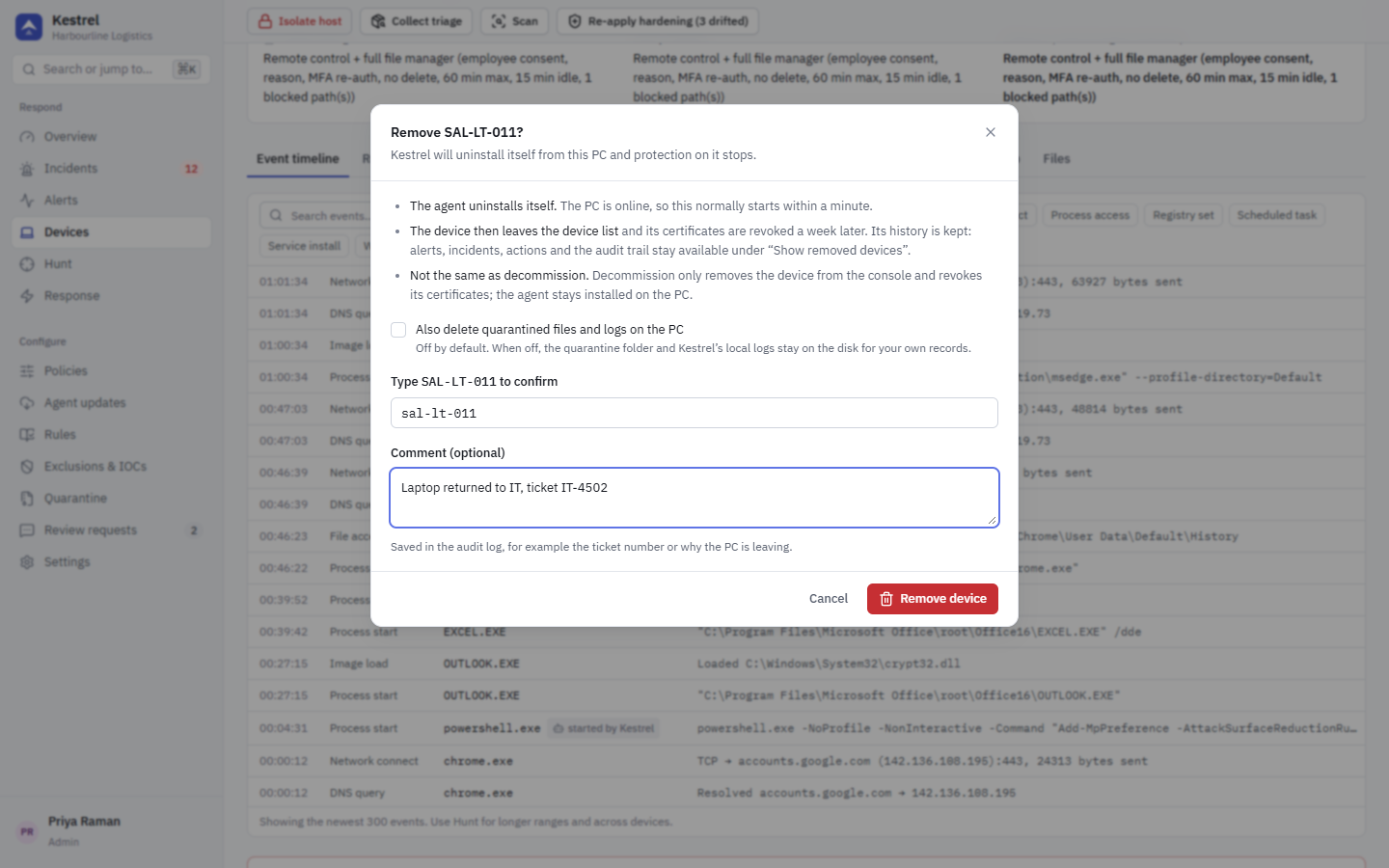
What happens:
- The server queues an
uninstall_agentcommand for the device. The agent checks it against its uninstall token (the server sends the token with the command), then runs the normal MSI uninstall. Protection on the PC stops at that point. - Once the agent has confirmed that the uninstall started and the device then stays disconnected for 10 minutes, the server marks it removed. Its certificates are revoked 7 days later. Until then, a PC whose uninstall did not finish (for example it was shut down halfway) can still connect: the device then comes back to the list with the status Removal failed, so a PC that still runs Kestrel never ends up locked out.
- The device leaves the device list. Its alerts, incidents, actions and audit entries are kept.
Who can do it: only administrators. It needs the devices.remove privilege, which only the admin role has, and an interactive console session. API tokens are refused even if they carry the privilege, so a leaked automation token cannot uninstall your fleet. If your account has two-factor authentication, the console asks for a fresh authenticator code first (one code is valid for 10 minutes). Each admin can ask for at most 20 removals per hour.
To confirm, type the device's hostname (not case-sensitive). You can add a comment, for example a ticket number; it is saved in the audit log.
Also delete quarantined files and logs on the PC (off by default) also deletes C:\ProgramData\Kestrel after a successful uninstall, the same option as in the uninstall tool on the PC. Leave it off if you may still need the quarantined files or the local logs.
Offline PCs
You can remove a PC that is offline. The request waits on the server and the agent uninstalls itself the next time it connects. A queued request stays valid for 90 days; after that it expires and nothing is uninstalled. While the request is still queued you can take it back with Cancel removal on the device page. Once the server has sent it to the agent, it can no longer be cancelled.
Statuses
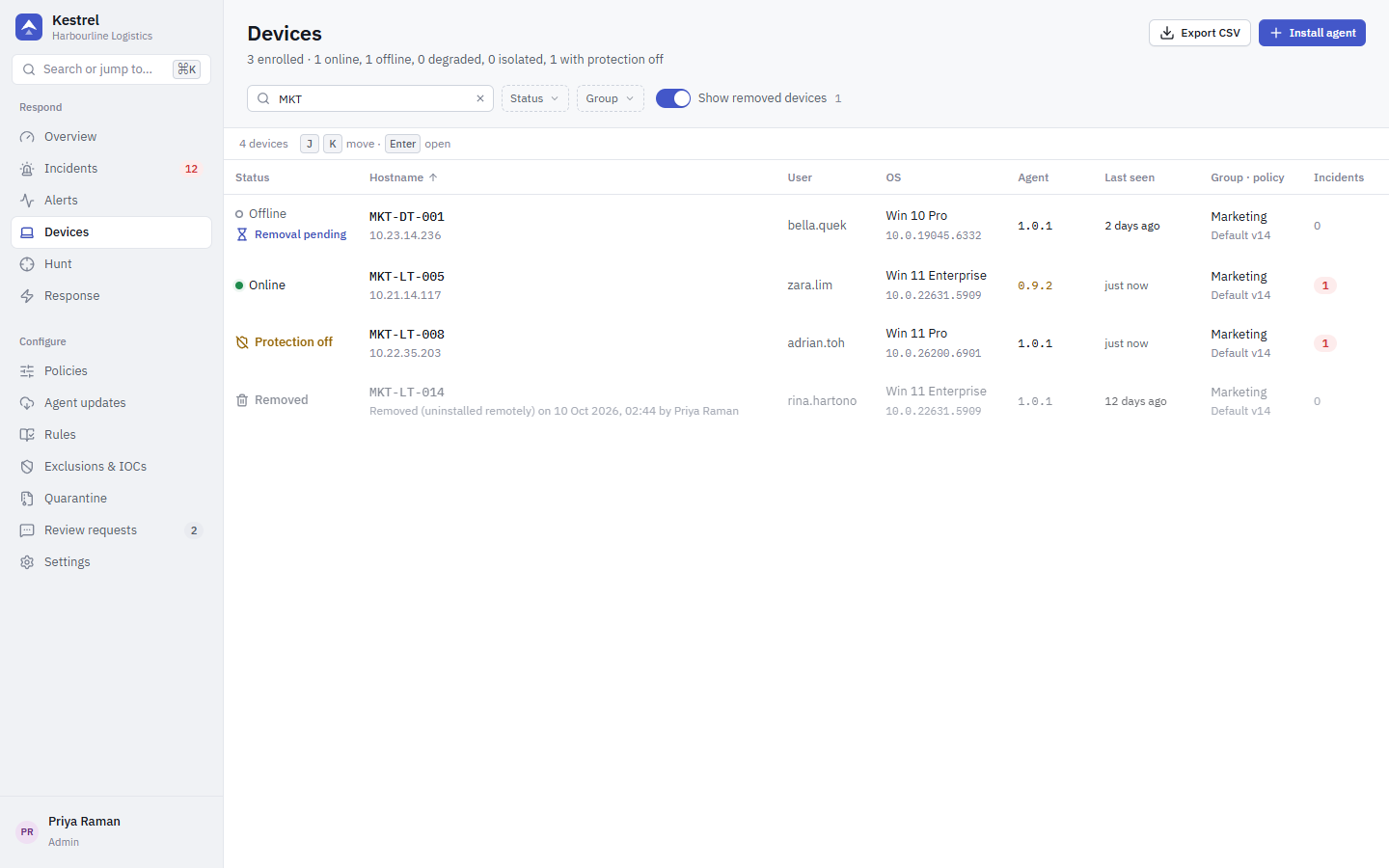
The device page shows a banner, and the devices list shows a badge (icon and label) next to the device status:
| Status | Meaning |
|---|---|
| Removal pending | Queued; the agent has not received it yet (the PC is offline or about to pick it up). Cancel removal is available. |
| Removing | The agent confirmed that the uninstall started. Protection on the PC has stopped. The device is marked removed once it stays disconnected for 10 minutes. |
| Removal failed | The agent reported a failure, for example a token mismatch or a Windows Installer error code. The banner shows the error text. Kestrel is still installed and the device stays in the list; fix the cause and click Try again. The token was sent to the PC, so the server replaces the device's uninstall token automatically. |
| Removal expired | The PC did not connect within 90 days. Nothing was uninstalled. |
| Removed | Uninstalled remotely. The device is hidden from the list. |
Removed devices
Removed devices are hidden from the device list by default. Turn on Show removed devices to list them again: they are shown muted, with Removed (uninstalled remotely), the date and the admin who asked for it. Their device page stays available and read-only (no actions, no danger zone), so history and investigations keep working.
Older agents
Remote removal needs an agent that announces support for it (capability agent.uninstall). For older agents the button is disabled with The agent on this PC is too old for remote removal. Update the agent, or use the uninstall tool on the PC. Update the agent with Agent updates, or uninstall it on the PC (see Uninstall).
Audit log
| Action | When |
|---|---|
device.remove.requested | An admin asked for the removal (with the purge option and comment). |
device.remove.started | The agent confirmed that the uninstall started. |
device.remove.completed | The device was marked removed. |
device.remove.failed | The agent reported a failure. |
device.remove.cancelled | An admin cancelled a queued removal. |
device.remove.expired | A queued removal expired after 90 days. |
User-mode software cannot promise that every uninstall succeeds: a PC that never connects again keeps the agent. The statuses above tell you what actually happened on each PC.
Decommissioning
To decommission a device, open it and use Decommission device in the danger zone at the bottom of the page (needs the devices.write privilege; type the hostname to confirm). Decommissioning (or merging a duplicate into another device) revokes its certificates, drops its live connection at once and cancels queued commands. Its history is kept.
Decommission only removes the device from the console. The agent stays installed on the PC and keeps running without a server. Use it for PCs that are already wiped, lost or replaced. To also uninstall the agent, use Remove device instead, or uninstall it on the PC with the uninstall token (see Uninstall).