
Remote access
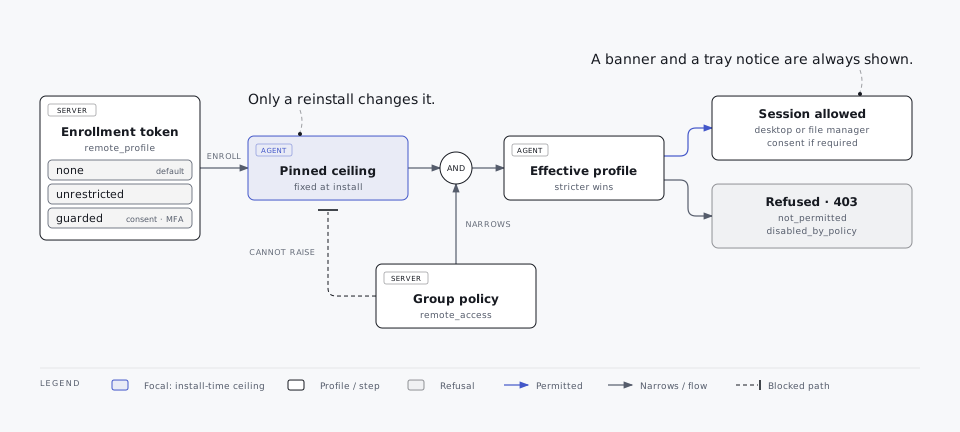
Kestrel includes admin-only remote desktop and a remote file manager, opened from a device page in the console. What each device allows is decided when the agent is installed and can only be narrowed later.
Two locks: install ceiling and policy
Both must allow an action before it happens:
- Install ceiling. Every enrollment token carries a remote-access profile. The agent pins it at enrollment. No server message can raise it; only a reinstall with a new token can change it. A device installed with No remote access cannot be opened even by a compromised server or administrator account. Devices enrolled before profiles existed have that ceiling.
- Policy. The policy's Remote access section can narrow what devices allow. Existing policies default to no remote access.
The effective profile is the stricter of the two. The agent enforces it, and the server checks the same thing to show the result and refuse early. The device page shows a summary card with the ceiling, the policy and the effective result.
Profiles
| Profile | Remote desktop | File manager | Guardrails |
|---|---|---|---|
| No remote access (default) | Off | Off | none needed |
| Remote control + file manager (no guardrails) | Control | Full, with upload, rename and delete | none |
| Remote control + file manager with guardrails | Control | Full, uploads yes, delete no | employee consent, reason, MFA re-check, 60-minute sessions, 15-minute idle limit |
Profiles can be customised in the install wizard: remote desktop Off, View only or Control; file manager Off, Read only or Full; and these guardrails:
| Guardrail | Effect |
|---|---|
| Employee must allow each session | An Allow / Deny prompt in the tray before a desktop session, or before the first change in a file-manager session. No answer, nobody signed in, or an old tray app means deny. Wait time configurable (0 = 60 s). |
| Admin must give a reason | Shown in the banner and the consent prompt, and recorded in the audit log. |
| Fresh MFA check before access | The admin re-enters an authenticator code; one check lasts 10 minutes. The admin needs TOTP set up. |
| Allow uploads and new folders | Create files and folders (Full file manager only). |
| Allow delete and rename | Delete (recursive), rename and move. Also needed to replace a file by uploading over it. |
| Longest session, end after idle | Minutes; 0 = no limit. |
| Only during set hours | Days and hours, in the device's local time. |
| Blocked folders | Paths that are always refused, together with their parent folders for rename and delete. |
What is always true
- The employee always knows. In every profile, a banner stays at the top of the employee's screen for the whole remote session, and the tray shows a notification. Remote desktop: "IT (name) is viewing / controlling this PC", with the reason. File manager: "IT (name) is accessing files on this PC since 14:02", with the reason. The banner is always on top, click-through and cannot be closed, and it does not depend on the tray window being open. There is no hidden mode.
- Administrators only, through the
remote.desktopandremote.filesprivileges, and only from an interactive console session. API tokens are refused. - Audited. Every session start, mode change and stop, every consent result and every file operation is in the hash-chained audit log, with path, byte count and SHA-256 for transfers. Screen frames and file contents never reach telemetry, ClickHouse or logs.
- Switching from view only to control asks for consent again (when consent is required).
- Kestrel's own install and state folders, their parent folders (for rename and delete), network paths, UNC paths and device paths are always refused by the file manager.
Remote desktop
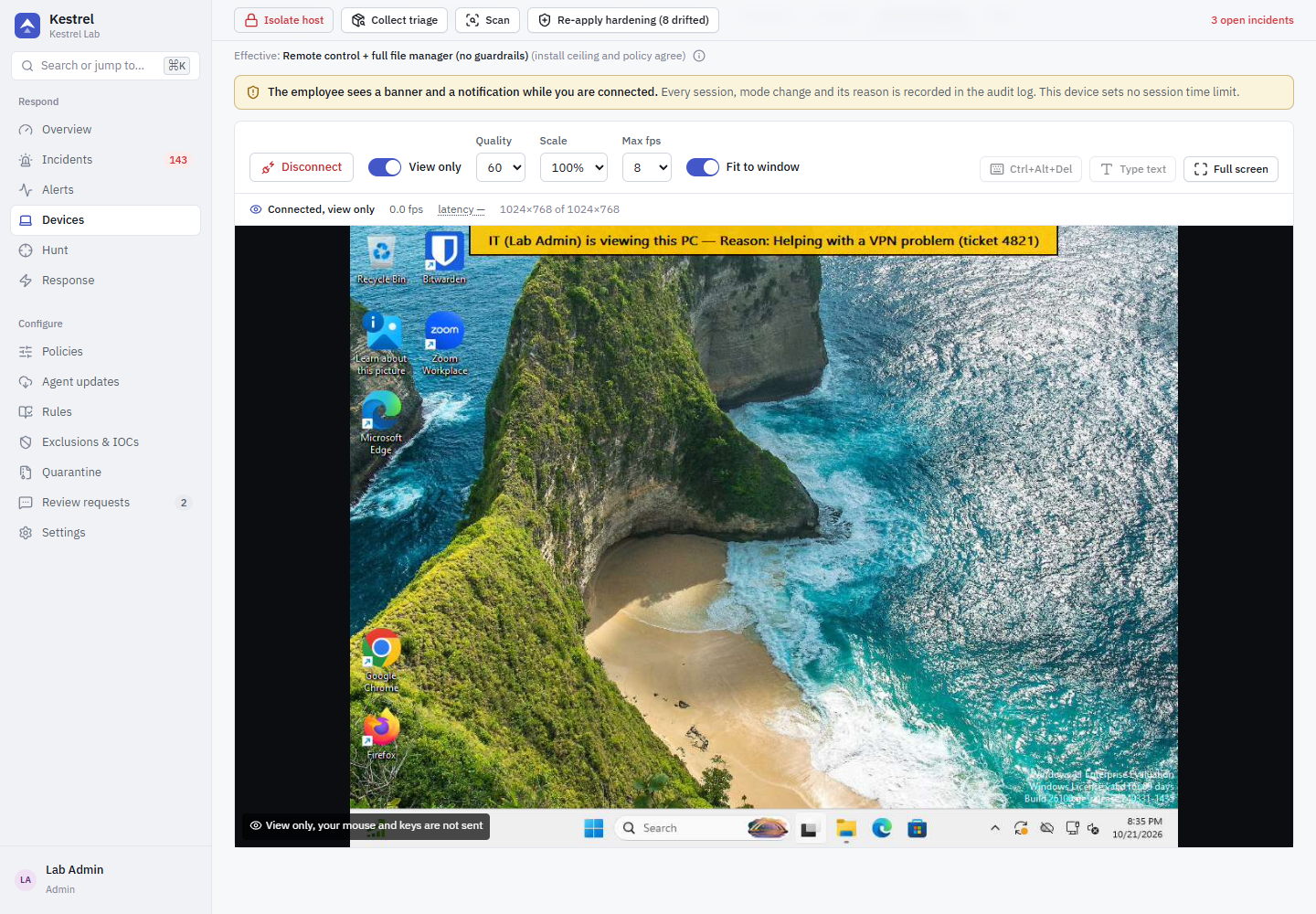
The agent starts a helper (kestrel-agent.exe desktop-helper) in the signed-in user's session. It captures the screen, follows the UAC prompt and the lock screen where Windows allows, and injects mouse and keyboard input. A Ctrl+Alt+Del button is available, and the console can type text into the session.
Limits:
- Screen capture is GDI-based JPEG at about 5 to 10 frames per second: fine for support work, not for video. A 4K screen at high quality costs bandwidth and CPU.
- No audio and no clipboard sync.
- The mouse pointer is not drawn into frames.
- The banner cannot appear on the secure desktop (UAC prompt, lock screen); the tray notification still does.
- Ctrl+Alt+Del works only when the Windows policy
SoftwareSASGenerationallows services to send it. - Multiple monitors are shown as one virtual screen.
- A desktop session needs a user signed in at the console. With consent required, no answer counts as deny.
- The UAC secure desktop, multi-monitor setups, DPI scaling and an employee clicking Allow have not yet been exercised in the lab.
File manager
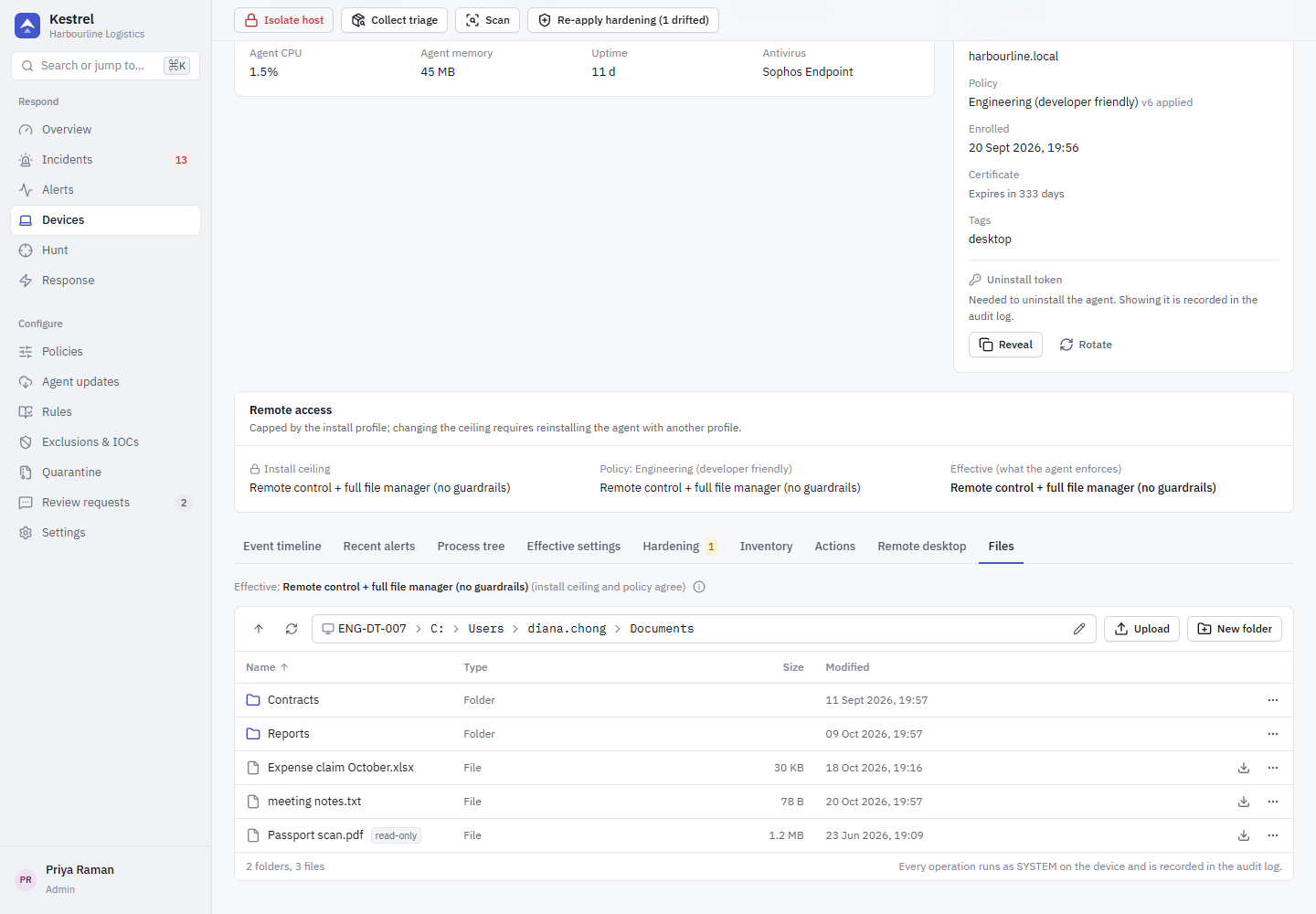
The file manager runs as SYSTEM on the device. It can browse drives, download, and (when allowed) upload, rename, move, delete and create folders. Only absolute X:\... paths are accepted. Every operation works on an opened handle and never follows links; a recursive delete removes links, never their targets. Uploads go to a temporary file and replace the target only after the size and SHA-256 match. Downloads stream from the device straight to the browser; the server never stores file data.
The banner during file access. Before the first operation of a file-manager session runs (even just listing the drives), the agent puts the banner on the employee's screen, using the same helper as remote desktop without capturing anything. If the banner cannot be shown, nothing runs: the console shows the on-screen notice for the user at this PC could not be shown ... remote file access is refused, and the session does not start. The rules are those of remote desktop: the device needs an interactive console session, and a helper that cannot start means no access. The agent checks the banner again before every operation; if it disappeared (for example after a user switch) it is shown again, and if that fails the file sessions end.
- The banner ends when you leave the Files tab or close the console window, after 5 minutes without file operations, when the connection to the device drops, or when a policy switches the file manager off.
- While a remote desktop session runs on the same PC, there is one banner: the desktop banner also says that IT is accessing files. When the desktop session ends and file access continues, the file banner appears before the desktop banner goes away.
- Consent works as before: notify-only profiles show the banner and the notification without asking; with consent required, the employee is asked before the first change (upload, rename, delete, new folder).
Full file access equals administrator access
Uploading files as SYSTEM can change anything on the PC, including how the agent behaves. An administrator with Full file access and upload could rewrite the agent's configuration, so hours, blocked folders and consent are soft limits against a malicious administrator. The hard boundaries are the install ceiling (none, view only, read only) and MFA for administrators.
Recommendations
- Use No remote access unless you have a support process that needs it.
- If you need it, prefer the guarded profile.
- Enable MFA for every administrator and restrict network access to the console. A compromised administrator account or server can use remote access on every device whose install profile allows it.
- Mention remote access in the employee notice (policy Branding & notice).
To change a device's profile, uninstall it with its uninstall token and install again with a new token (see Enroll devices).